
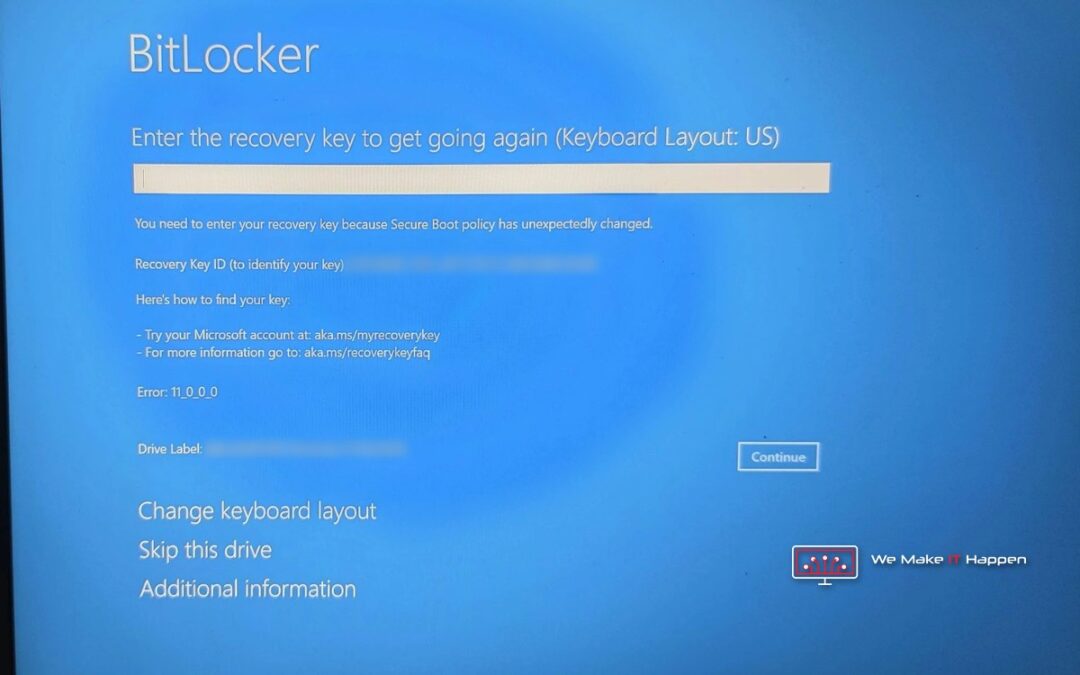
An update ran, the laptop restarted, and instead of the login screen it showed the blue BitLocker recovery screen asking for a 48-digit key. It was a company laptop, a Lenovo ThinkPad P14s, and the owner’s whole business was on it. Nobody had the key. This is how we got Windows back overnight with every file, what a lost BitLocker recovery key really means, and the two-minute check that stops it happening to you.
“Secure Boot policy has unexpectedly changed”
That was the message on the screen. BitLocker encrypts the whole drive, and the security chip in the laptop (the TPM) only hands over the unlock key when the start-up looks exactly as it did before. The update (Windows Update installs BIOS updates too) changed the laptop’s Secure Boot settings, the chip no longer recognised the start-up, and BitLocker asked for the recovery key instead. Microsoft is replacing its Secure Boot certificates on Windows PCs during 2026, so we expect to see this screen more often.
No recovery key anywhere
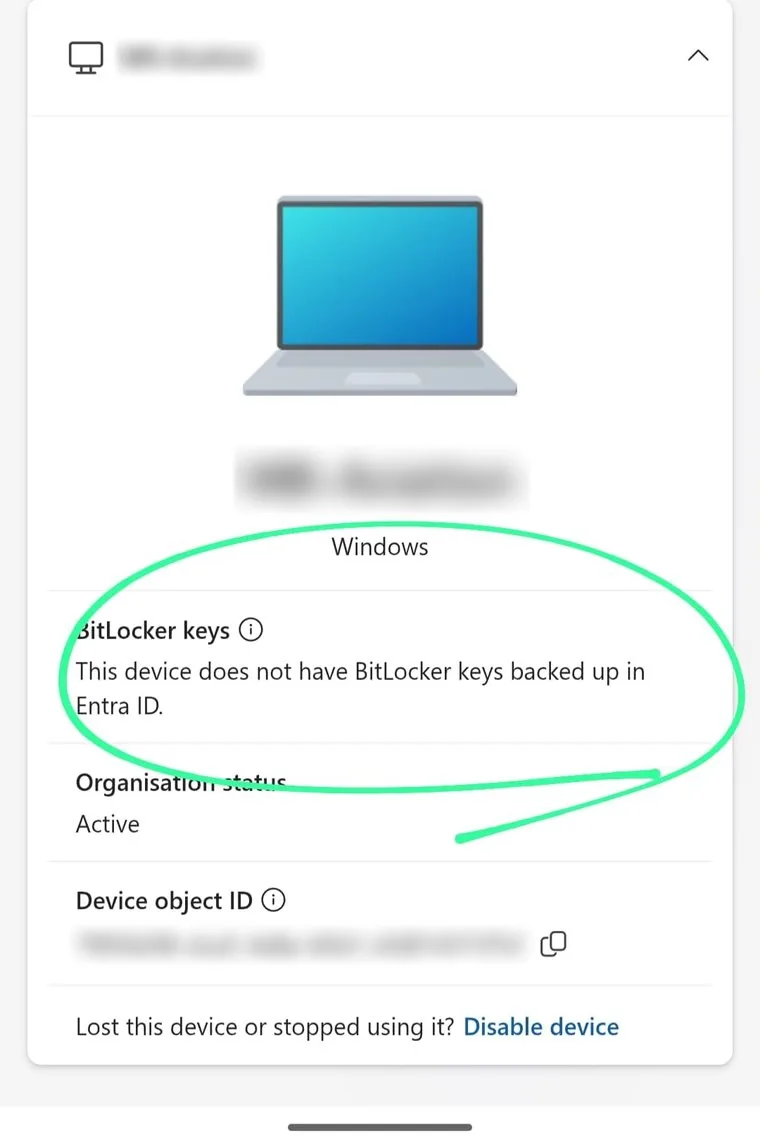
The key was not in the owner’s Microsoft account. Because it is a company laptop, the owner also checked the company’s Microsoft Entra ID, where business laptops usually keep their keys. It said: “This device does not have BitLocker keys backed up in Entra ID.”
The owner hoped everything was in OneDrive, but desktop files and downloads are often never synced. Without the key, whatever was only on the drive was locked away.
Nobody can crack BitLocker, so we were honest
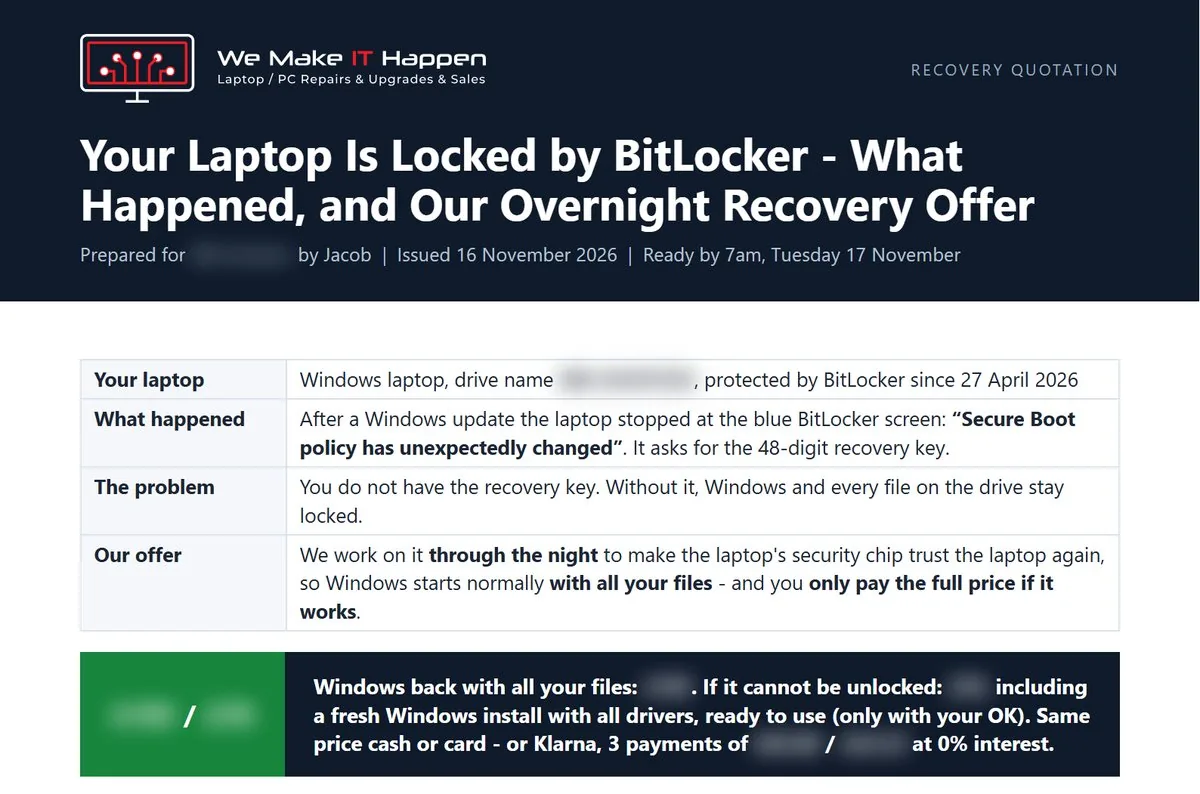
Anyone who promises to “crack” BitLocker is not telling the truth. Not us, not Microsoft. What we can sometimes do is different: the key to the drive is still inside the laptop’s security chip. If the chip can be made to trust the laptop again, it unlocks the drive by itself, with no recovery key and nothing wiped. It’s a long shot, so before we touched anything the owner got a written offer: we would work on it overnight, and the owner would pay the full price only if Windows came back with all the files.
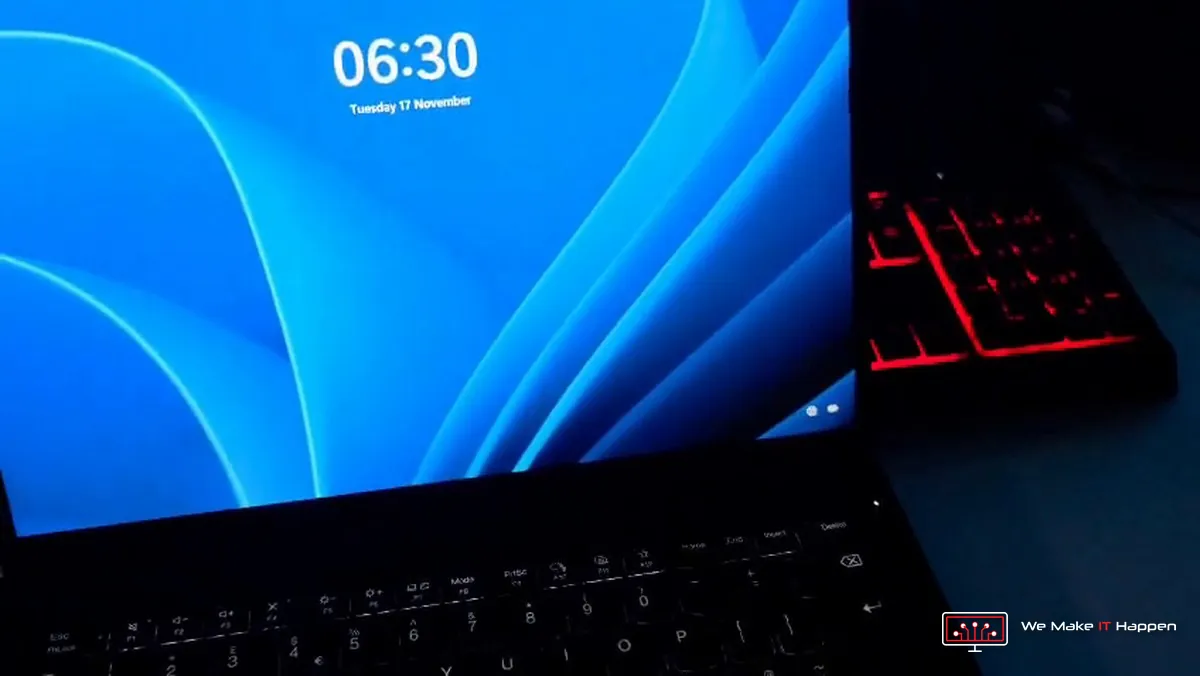
06:30: Windows was back
We worked through the night. At 06:30 the next morning the laptop started straight to its normal lock screen and asked for the owner’s usual PIN. Once logged in, the files and programs were all there. We sent the owner a video of it at once.
Then we switched BitLocker off
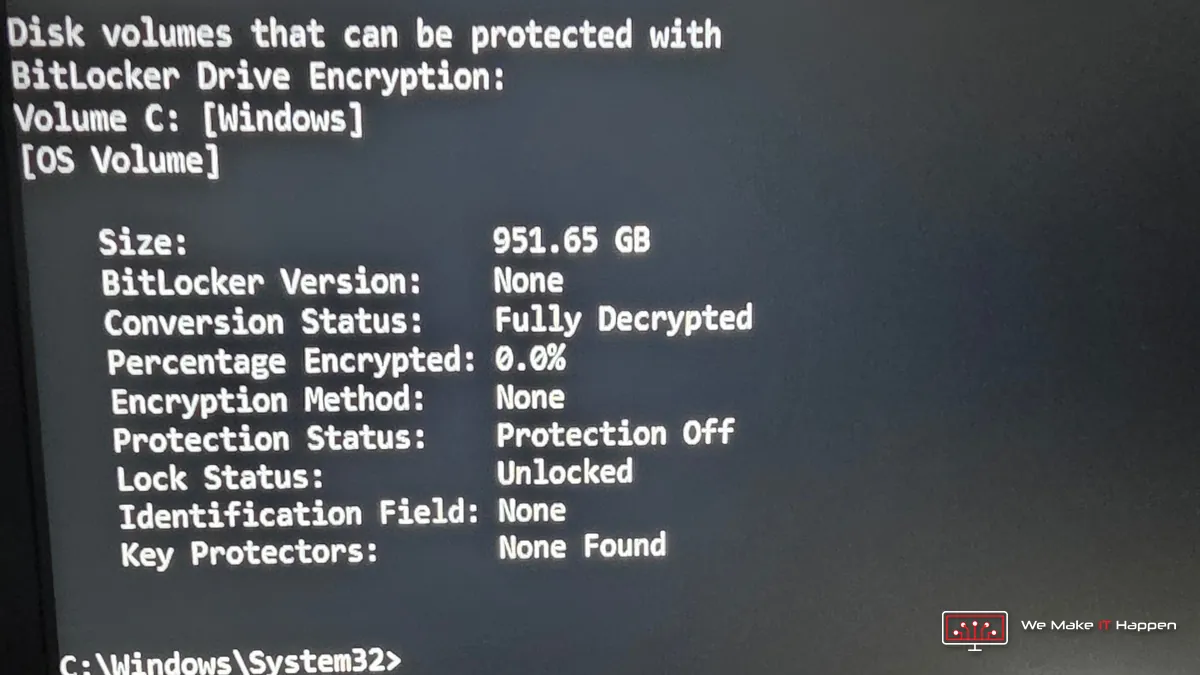
As soon as Windows was in, we decrypted the whole 1 TB drive, so the same lock can’t catch the owner out again. The BitLocker status now reads Fully Decrypted, 0.0% encrypted, with no key protectors left.
A full health check and a written report
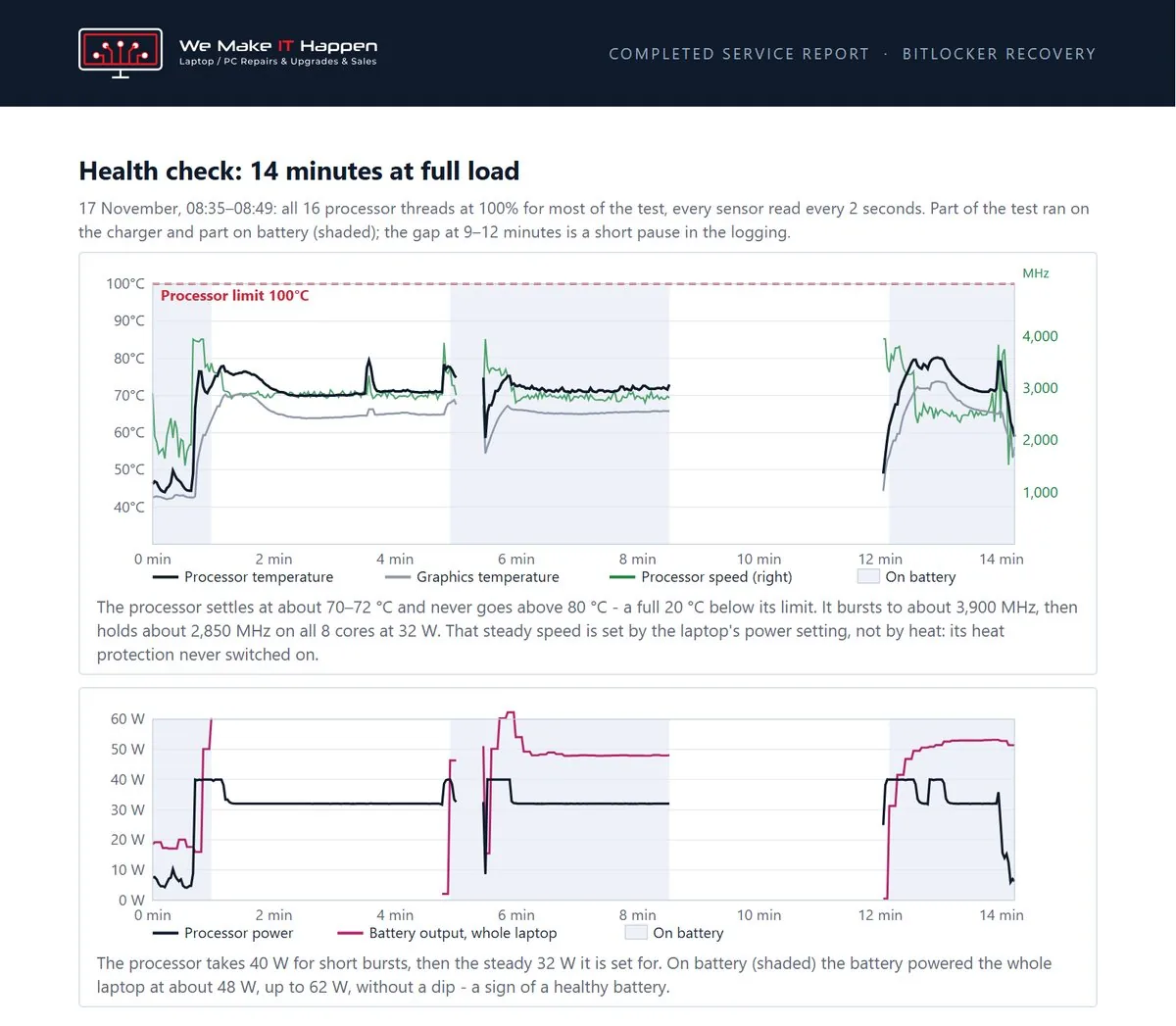
Before handing it back we ran the laptop at full load for 14 minutes and logged every sensor:
- No overheating: the processor peaked just over 80 °C against its 100 °C limit and never slowed down for heat.
- Battery: 92% health (7.6% wear).
- Drive: 100% health, no warnings.
- Errors: 0 hardware errors.
- BIOS: already the newest Lenovo version for this model.
The owner got all of it in a written completion report, with the charts from the test.
What the owner said
“Amazing. You are a superstar!”
“Thank you so much. I’ll pop over now to collect it. Amazing support as always”
The laptop’s owner, on WhatsApp
Save your BitLocker recovery key today
Many Windows 11 laptops encrypt their drive with BitLocker without telling anyone. It takes two minutes to make sure a lost key never costs you your files:
- Go to aka.ms/myrecoverykey and sign in with your Microsoft account. Your laptop’s 48-digit key should be listed there.
- Not there? On the laptop, search for Manage BitLocker and choose Back up your recovery key.
- Print a copy and keep it somewhere safe, away from the laptop.
- Company laptop? Ask whoever looks after your IT to check that the key is saved in Microsoft Entra ID.
We do this on every laptop we open. Before a deep clean, a battery change or a BIOS update, we check BitLocker first, so the files are never at risk. You can see that step in our Lenovo Legion Pro 5 overheating repair. Once your key is safe, you can also switch BitLocker from 128-bit to 256-bit encryption.
Lost BitLocker recovery key: can every lock be undone?
No, and we’ll always tell you that before we start. It can work when the laptop itself is healthy and the lock was caused by a change the security chip noticed, like an update, a BIOS update or a Secure Boot change. If the drive has been moved to another laptop, the security chip was reset, or the drive itself is failing, there is no way in without the key. That’s why we write you an offer first and tell you straight what your chances are. More about our data recovery service.
Locked out by BitLocker?
Don’t keep restarting and don’t reset the laptop. Send us a photo of the screen on WhatsApp and we’ll tell you honestly what can be done. We’re in Cambridge and Dagenham, by appointment: call or WhatsApp 07497 925760.