
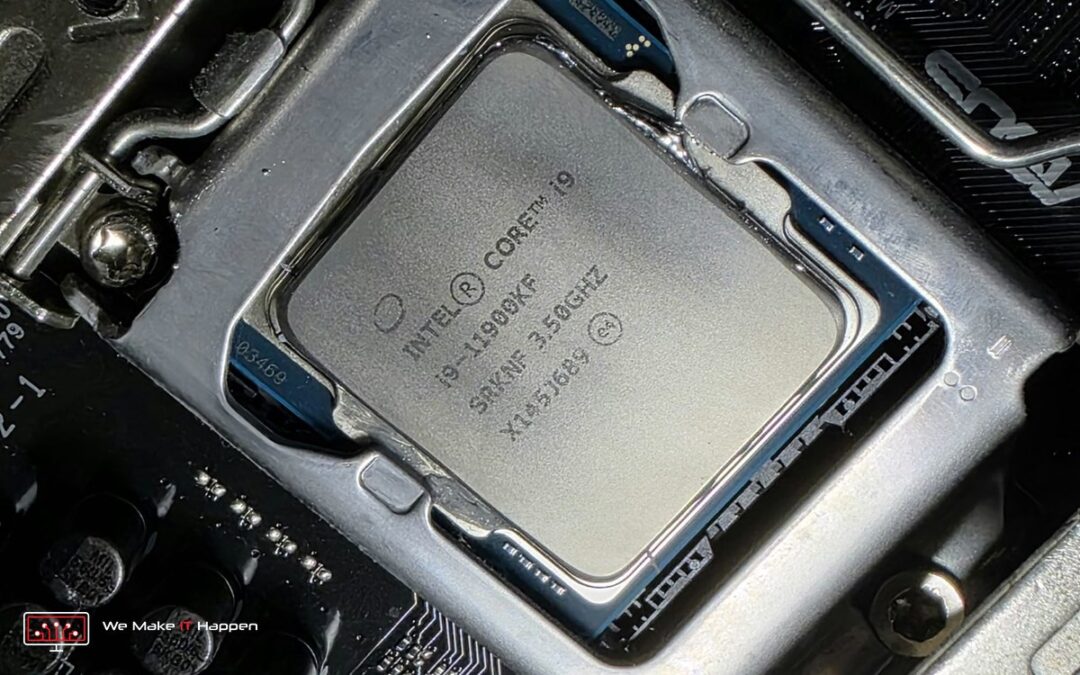
On Friday a gaming PC that would not turn on came in to our Cambridge office. No picture, no start. By Sunday evening it was running again with a 24-core Intel Core i9-14900KF and 64 GB of memory.
Here is how one weekend went from a dead motherboard to a full upgrade, and why liquid metal under a normal air cooler is a bad idea.
Friday: a gaming PC that won’t turn on
When a PC is completely dead, or powers on but shows nothing on the screen, there is no quick answer. It needs advanced diagnostics: the PC is stripped down, the power to the motherboard is measured, and the parts are checked one by one. Guessing and swapping parts at random only wastes your money.
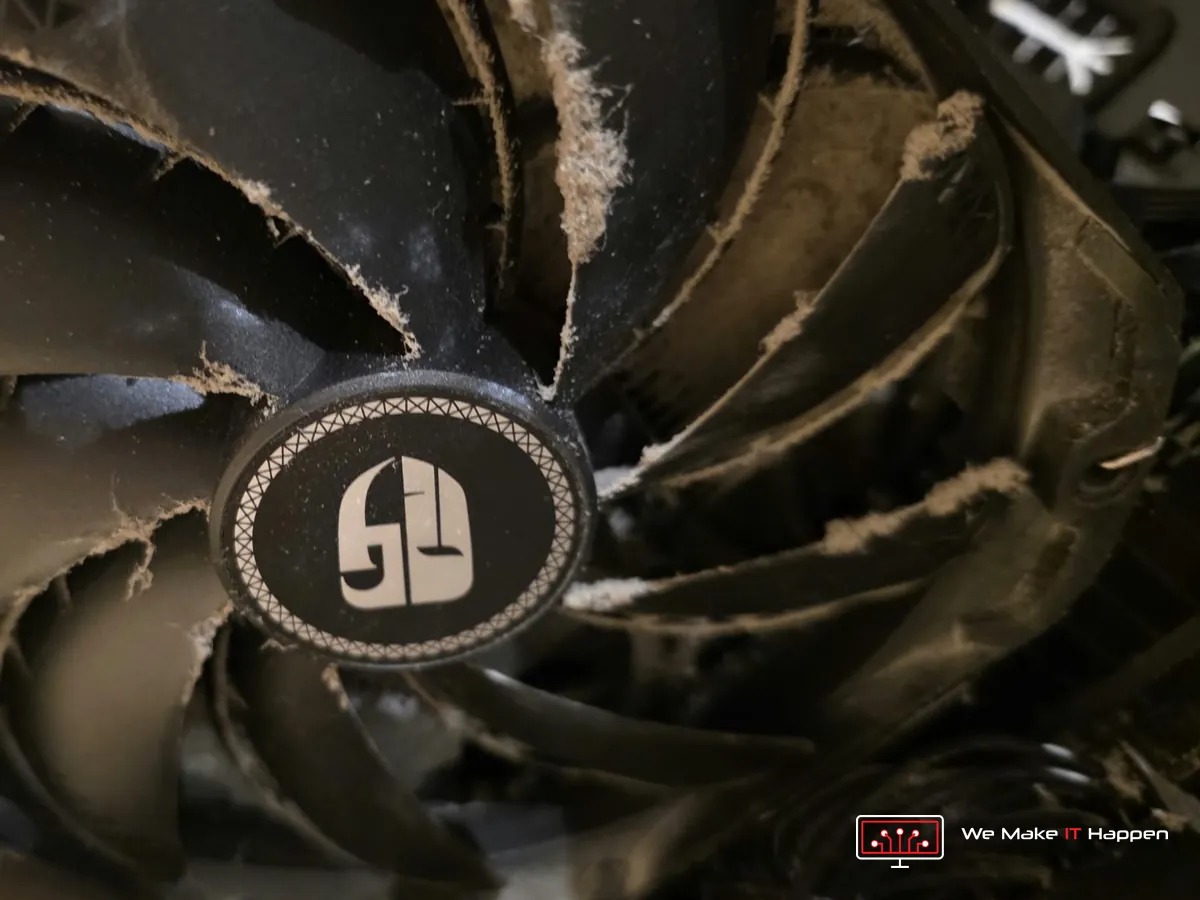
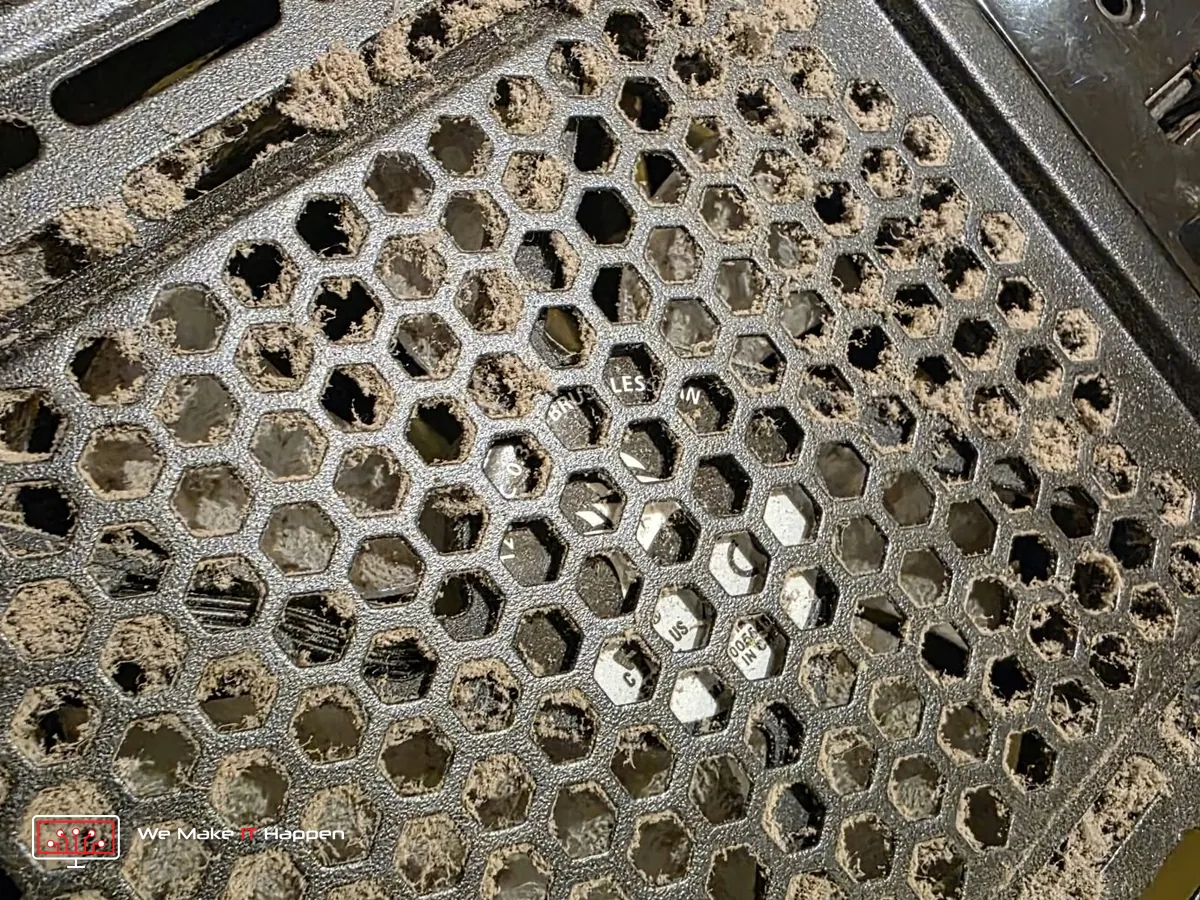
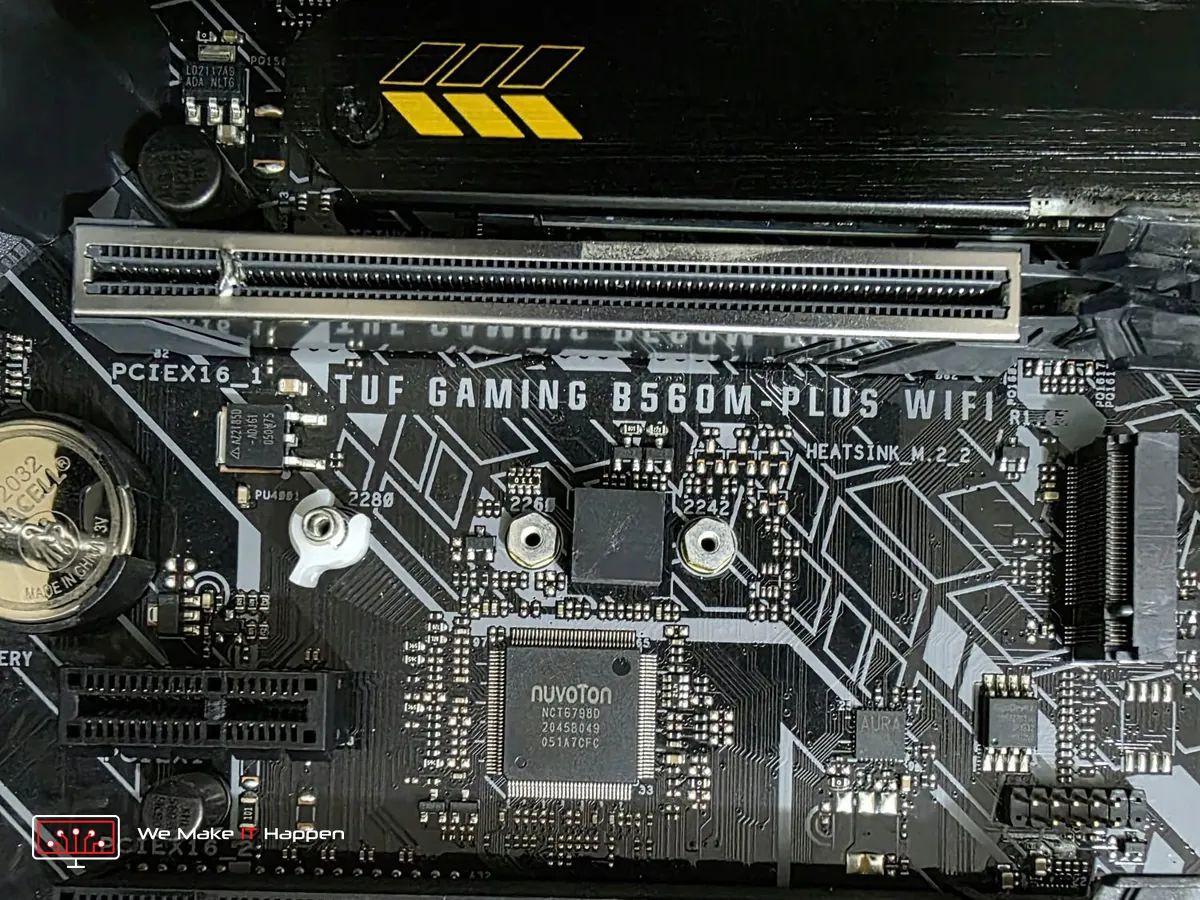
On Friday evening the diagnosis was clear: the motherboard (an ASUS TUF Gaming B560M-Plus WiFi) was dead. And inside, the PC had clearly not been cleaned for years. The intake grilles were blocked with dust, and the processor cooler, the front fans and the graphics card fans were all coated.
Liquid metal under a normal air cooler
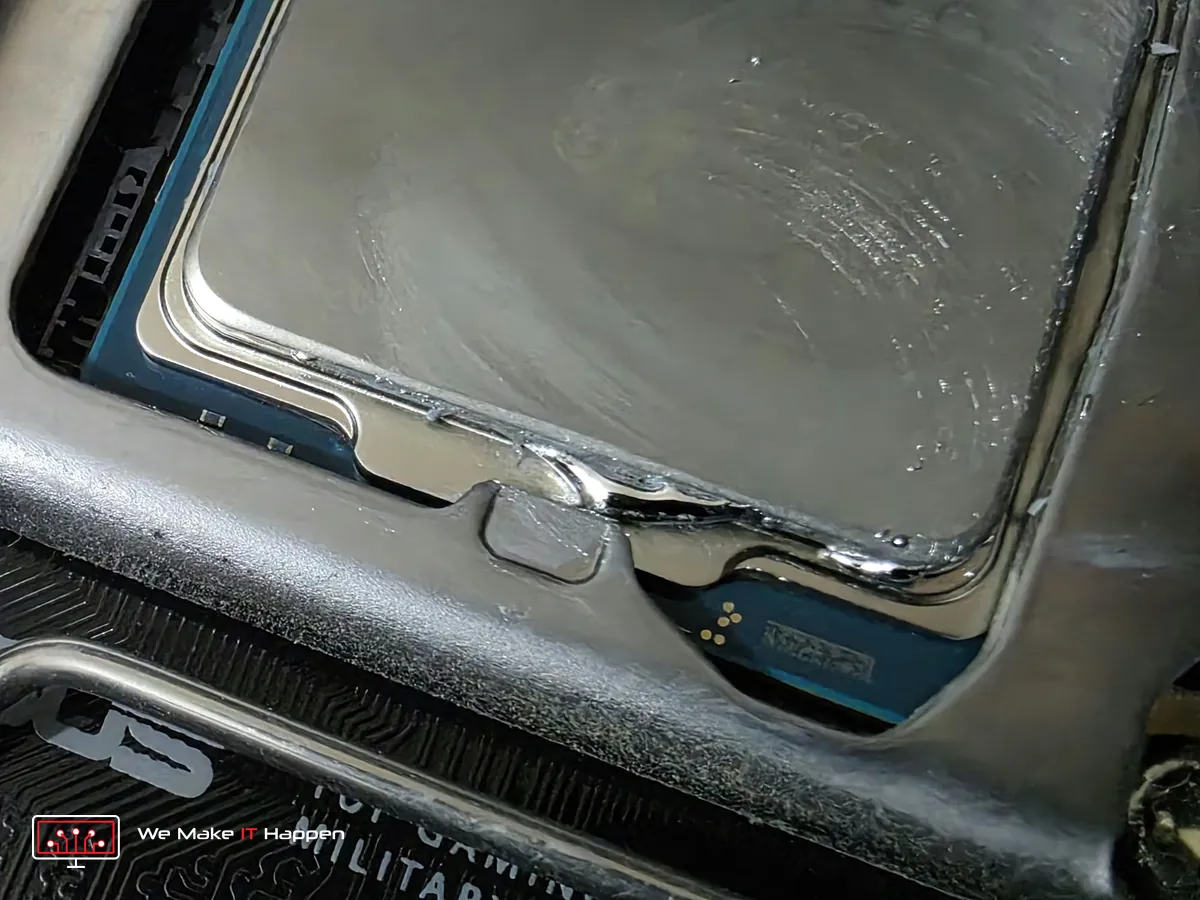
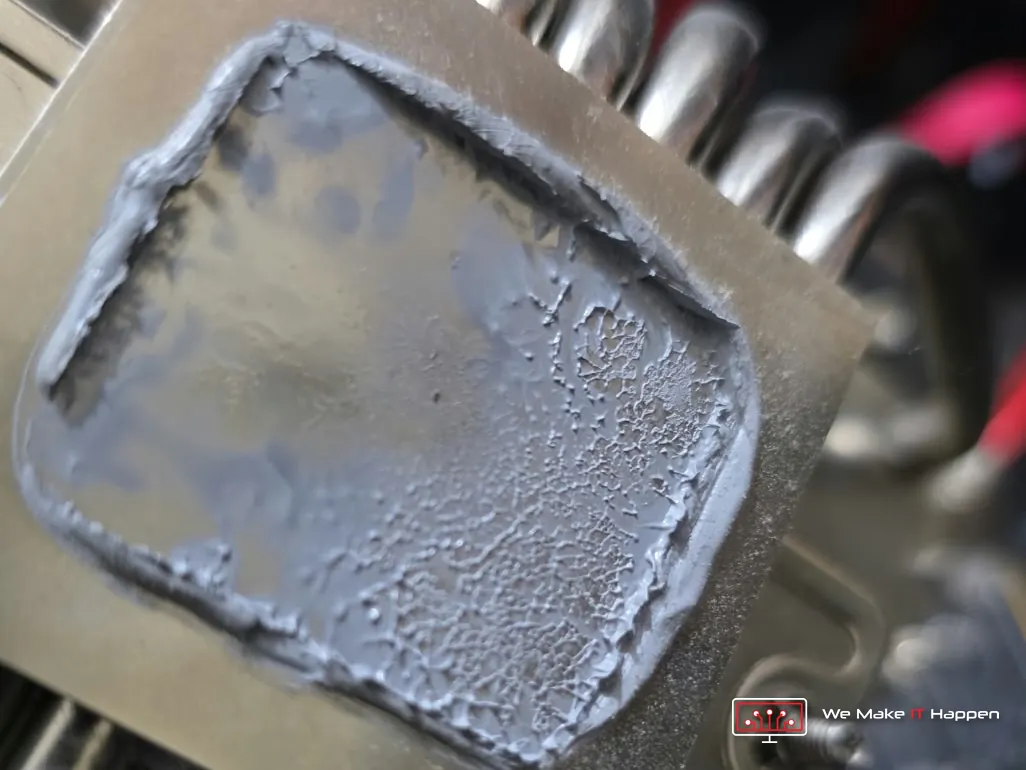
Then we found something we really don’t see often: liquid metal on the processor, under an ordinary tower air cooler.
Liquid metal is not a paste. It is a real metal (a gallium alloy) that stays liquid at room temperature, and it conducts electricity like a wire. Specialists use it only in carefully prepared setups, where the area around the chip is insulated and the cooler is made for it. Under a normal air cooler it creeps out as the PC heats up and cools down, and one stray drop on the socket or the board can short something.
In this PC it had run off the processor onto the processor’s own circuit board and the socket clamp, right next to the contacts. On the cooler it had dried into a grey, cracked crust, so it wasn’t even cooling properly any more.
Saturday from 5 am: every option, then the parts ordered
The old processor, an Intel Core i9-11900KF, uses an older socket. Boards for it are old stock now, and a good one with four memory slots was about a week away. So on Saturday morning we sent the owner every option, with photos of his PC:
- wait for a board that fits his old processor,
- upgrade to a new 24-core processor on a board that still takes his DDR4 memory, ready by Sunday,
- or move to a new DDR5 platform, which costs far more at the moment because DDR5 memory is very expensive.
He chose the upgrade, and all the parts were ordered on Saturday morning:
- Intel Core i9-14900KF: 24 cores and 32 threads, where his old i9 had 8 cores
- ASUS PRIME B760M-A D4 motherboard: the same size as the old one, with four DDR4 slots, so his own memory goes back in
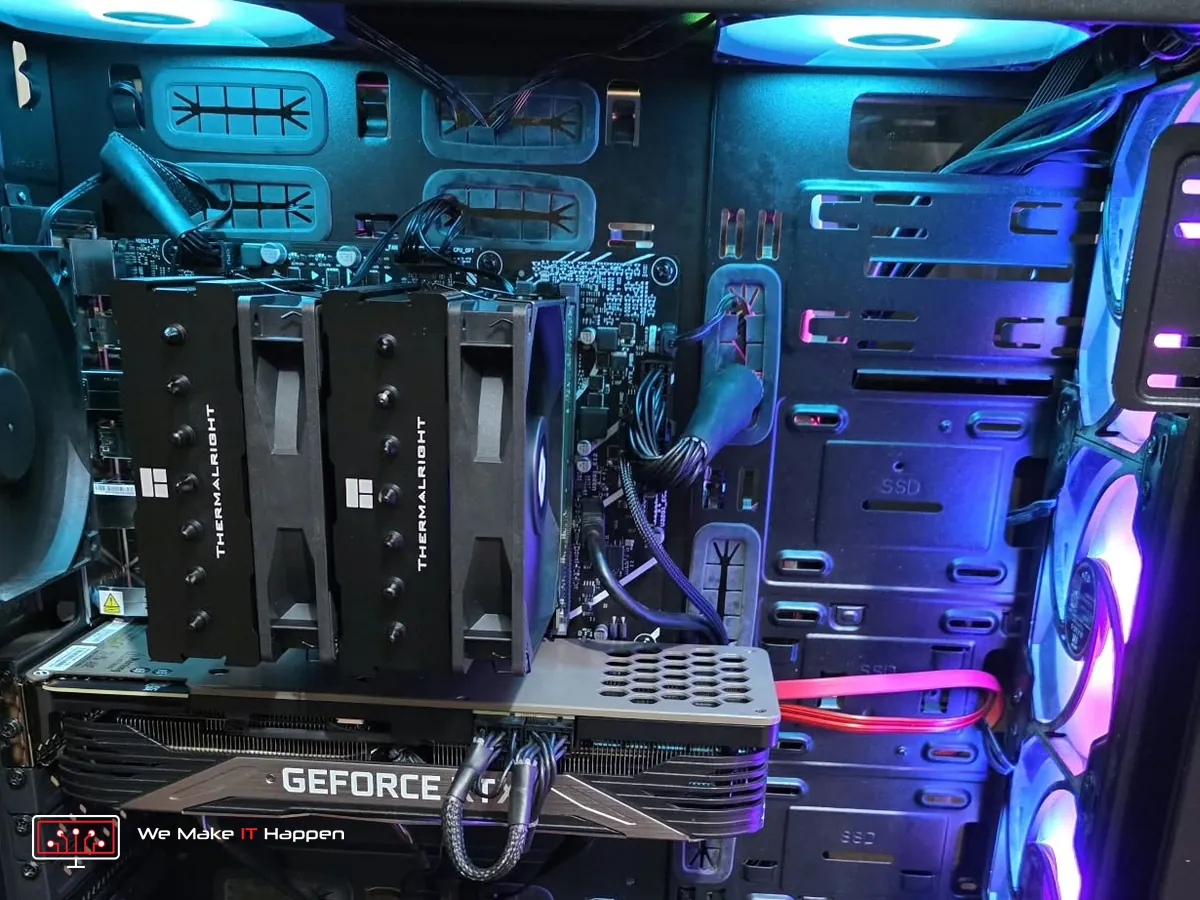
- Thermalright twin-tower cooler: the old cooler doesn’t fit the new socket, and its base was crusted with liquid metal
- Two new 16 GB sticks in place of his two 8 GB ones, for 64 GB of DDR4 in total
Sunday: running within 3 hours of the parts arriving
The parts were delivered on Sunday afternoon, and within 3 hours the PC was built and running. The old board came out, and the new processor, motherboard and cooler went in, with Arctic MX-7 thermal paste instead of liquid metal. His graphics card, drives, power supply and case all stayed, and the inside was cleaned.
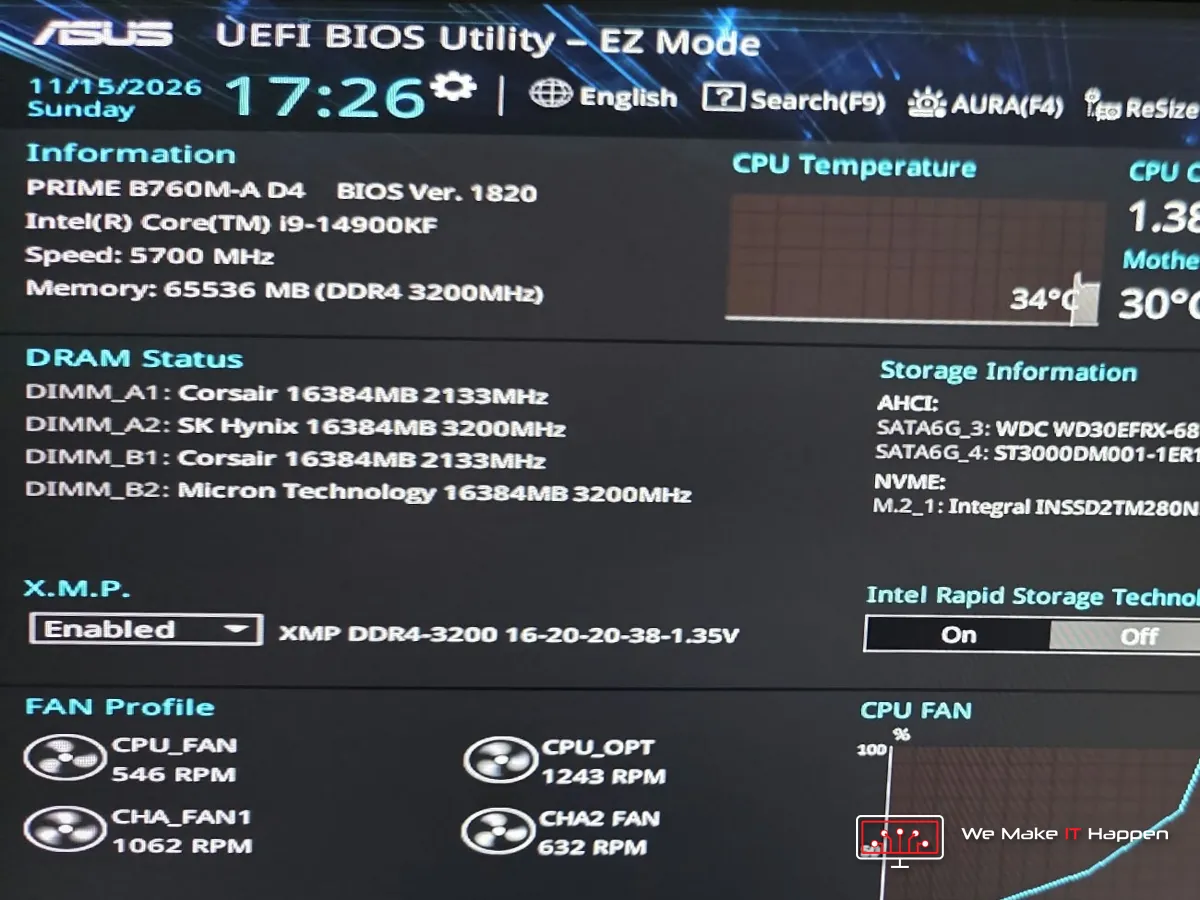
At 17:26 on Sunday the BIOS showed the new Intel Core i9-14900KF, 64 GB of DDR4 running at 3200 MHz, and the processor sitting at 34 °C.
One honest note: his four memory sticks now come from three different brands. Memory works most reliably as one matched set of four, bought together. Mixed sticks often work fine, but they can cause freezes or crashes under heavy load, so we advised a matched set for later.
Gaming PC won’t turn on? What to check first
- Check the power cable, the switch on the back of the power supply, and that the monitor cable goes into the graphics card, not the motherboard.
- Never force a graphics card out. There is a small latch at the end of the slot: press it first.
- Don’t put liquid metal under a normal air cooler. Good thermal paste is the safe choice.
- Clean the inside of a gaming PC, and replace the thermal paste, at least every two years.
- If your files matter, tell us before any work starts, and find your BitLocker recovery key if Windows has encryption turned on.
If it still won’t start or shows no picture, it needs proper diagnostics, not guesswork.
Frequently asked questions
Why won’t my gaming PC turn on?
Start with the simple things: the power cable, the switch on the back of the power supply, and the monitor cable, which must go into the graphics card and not the motherboard. If it is still dead, or it powers on with no picture, it needs advanced diagnostics: the PC is stripped down, the power to the motherboard is measured and the parts are checked one by one. In this PC the motherboard was dead.
Can I use liquid metal under a normal air cooler?
We advise against it. Liquid metal conducts electricity and creeps out as the PC heats up and cools down, so one stray drop on the socket or the board can short something. It belongs only in carefully prepared setups where the area around the chip is insulated and the cooler is made for it. Under a normal air cooler, good thermal paste is the safe choice.
Does the Intel Core i9-14900KF work with DDR4 memory?
Yes, on a motherboard made for DDR4. The processor works with DDR4 and with DDR5, but a motherboard takes only one of the two. Here we fitted an ASUS PRIME B760M-A D4 with four DDR4 slots, so the owner’s own memory went back in.
Can I mix memory sticks from different brands?
Often it works, but it is not the most reliable way. Memory works best as one matched set, bought together. Mixed sticks can cause freezes or crashes under heavy load, so a matched set is the safer choice.
PC and laptop repairs in Cambridge and Dagenham
We repair and upgrade gaming PCs, desktops and laptops, by appointment. You get photos of your own PC before any extra work, a clear choice of options, and our workshop warranty on every repair.
Book an appointment, message us on WhatsApp or call 07497 925760. See our motherboard repair, PC upgrades and deep clean and thermal paste pages, or our Cambridge and Dagenham pages.
Related: a PC that would not boot after a new graphics card, and a new gaming PC with a CPU fan error and no picture.