
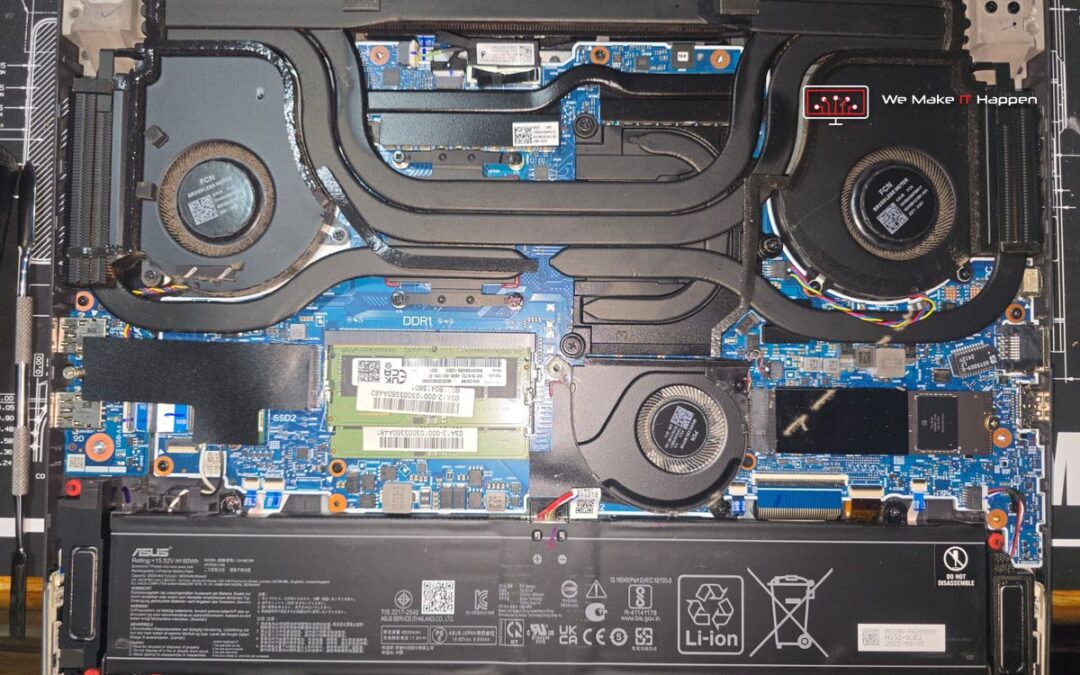
This ASUS ROG Strix G16 came to our Dagenham workshop with a very exact complaint. In one heavy game, Forza Horizon, the power dropped and the laptop switched itself off. A lighter game, CS2, ran all day without a problem. The owner had already seen the graphics card pass 105 °C just before a shutdown, was using extra fans under the laptop, and wondered if the charger was to blame.
An ASUS ROG Strix overheating like this is rarely a broken laptop. It is a laptop that has never been serviced. Below is what we measured before we opened it, what we found inside, what we did, and the same test again afterwards, number for number.
Fine in CS2, switches off in Forza: why?
The laptop is a 2023 ROG Strix G16 (G614JV) with an Intel Core i7-13650HX and an NVIDIA GeForce RTX 4060. Like most gaming laptops, the processor and the graphics card share one cooler: the same copper heat pipes carry the heat of both chips to the fans. A light game leans on one chip. A heavy game like Forza loads both at once, and that is when a tired cooler runs out of room.
When the graphics chip passes about 105 °C it protects itself the only way it can: it cuts the power, and if that is not enough the laptop switches off. So the fault looked random to the owner, but it was not. It followed the heat.
Two things the owner asked about turned out to be innocent. The charger was a genuine ASUS 280 W unit, and in our test it ran both chips flat out and still charged the battery. And the 56 °C the laptop showed at the desktop was normal: a resting temperature tells you almost nothing about how a laptop copes in a game.
Test first: every sensor logged before we open anything
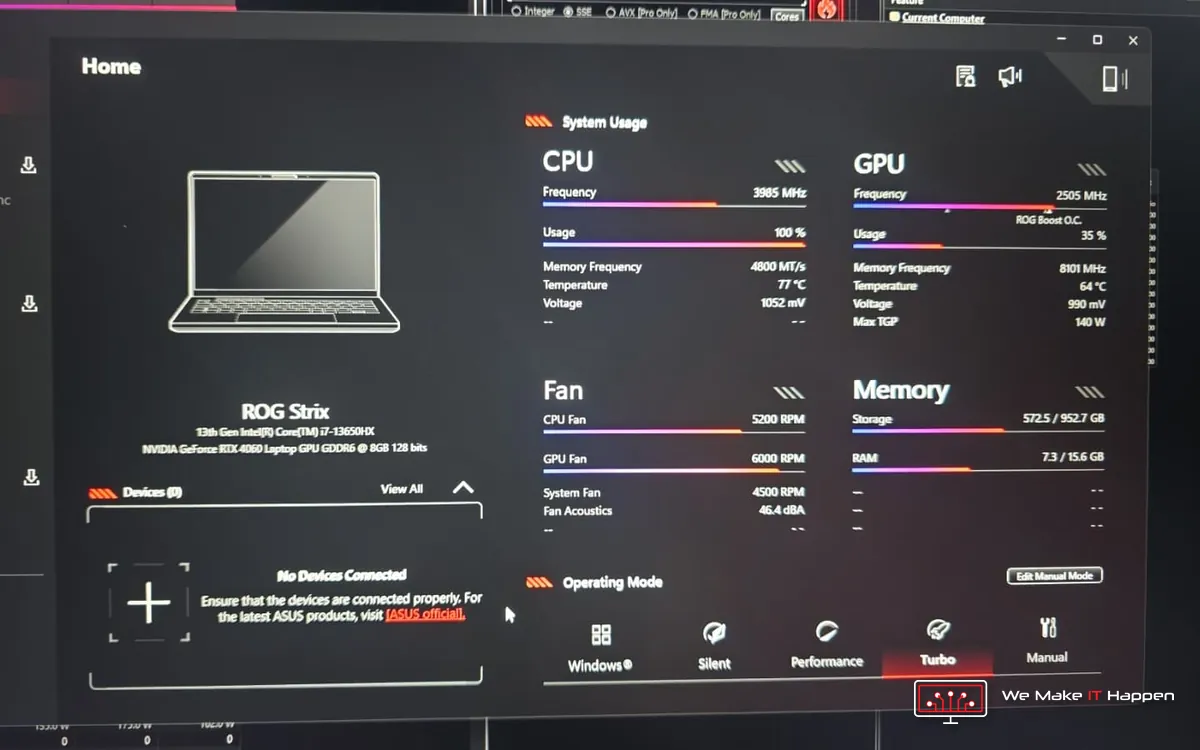
We do not open a gaming laptop on a guess. First it ran a full load on the processor and the graphics card together for 15 minutes, with every sensor recorded about every two seconds: 451 readings. The temperature figure in ASUS’s own Armoury Crate app is a rough guide. It does not show the hot spot of the graphics chip, how much power each chip is being given, or whether the processor is quietly slowing itself down.
What the log showed:
- Processor: 90 to 92 °C while being given only 70 W, with a peak of 96 °C. Its limit is 100 °C. The fan was flat out at about 5,400 rpm for the whole test.
- Graphics chip: 84 to 86 °C, but its hot spot read 100 to 106 °C. A gap of about 20 °C between the two usually means the thermal material between the chip and the cooler has dried out.
- Processor on its own: 94 °C at 97 W after five seconds of a stress test. A healthy cooler takes far longer to get there, or never does.
- Errors: none. No crashes, no hardware errors, no drive warnings.
That last line matters. Nothing was broken yet. The heat was simply not getting from the chips into the cooler and out of the laptop. The owner had this in a written report before a single screw came out.
What we found inside
The laptop had never been opened, and it looked exactly as a gaming laptop of this age does when it has never been opened. With the cooler lifted off, the reason for the numbers was in plain view.
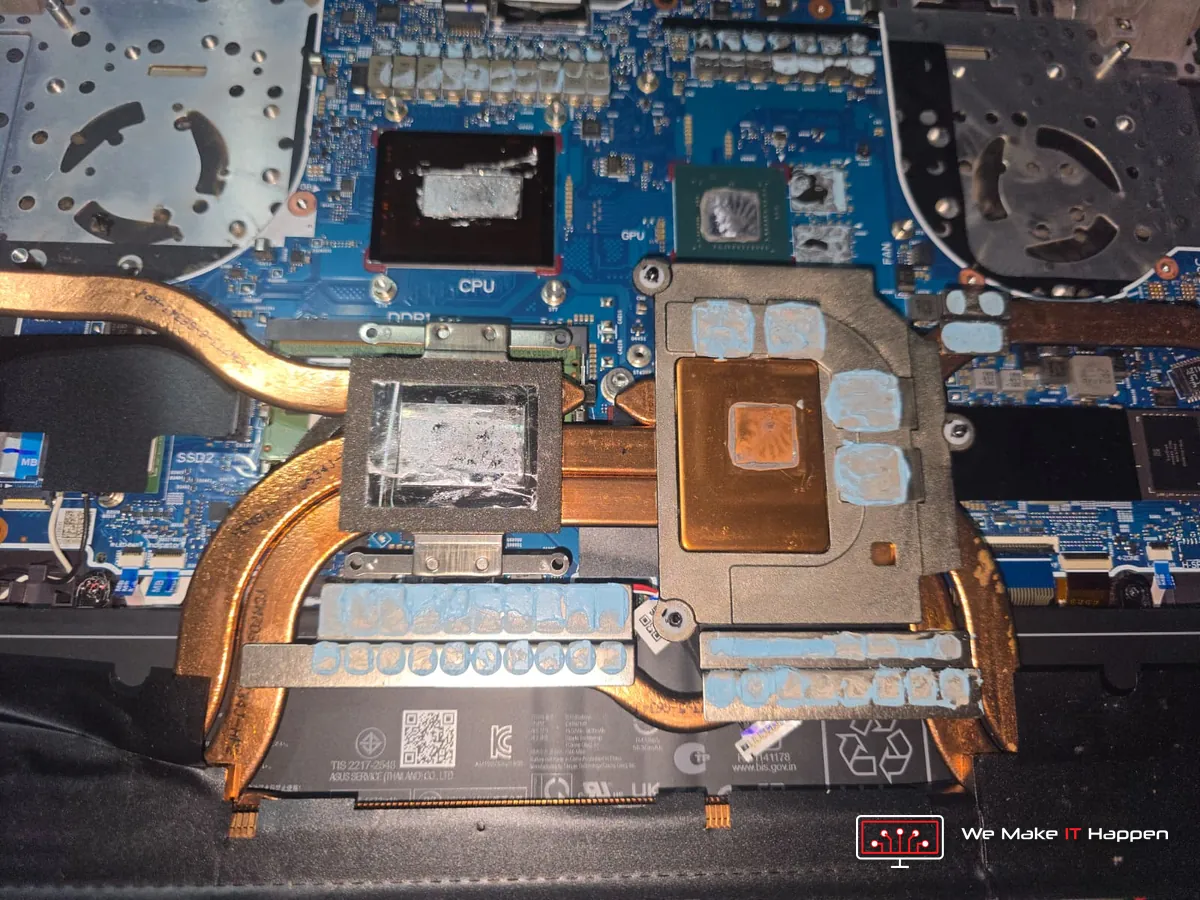
- Liquid metal on the processor: spread past the chip and dried at the edges, so part of the chip was no longer passing its heat to the cooler.
- Paste on the graphics chip: dry. That is the 20 °C hot spot gap from the log.
- Thermal putty on the video memory and the power parts: dried and cracked.
- Dust: the filters in the bottom cover were matted, and the fans and the edges of the cooling fins were caked.
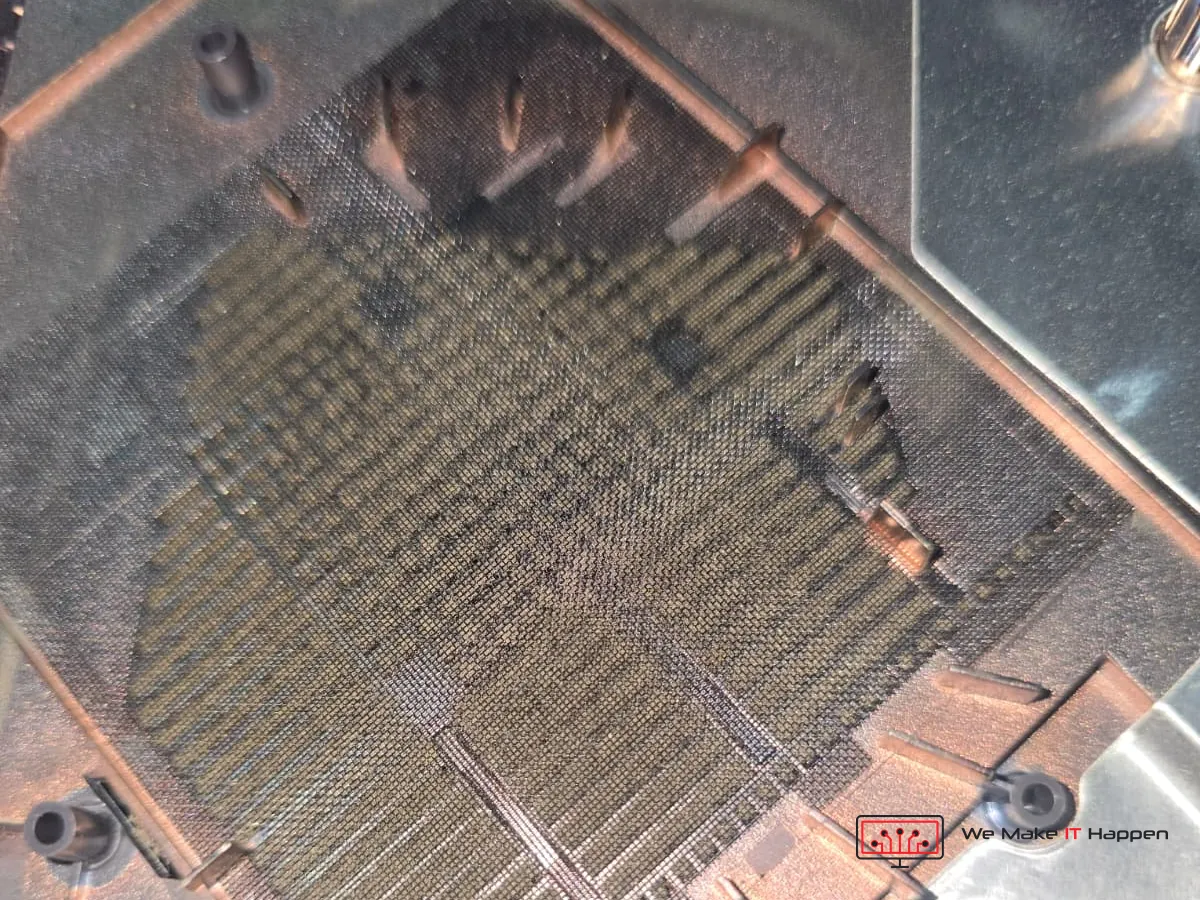
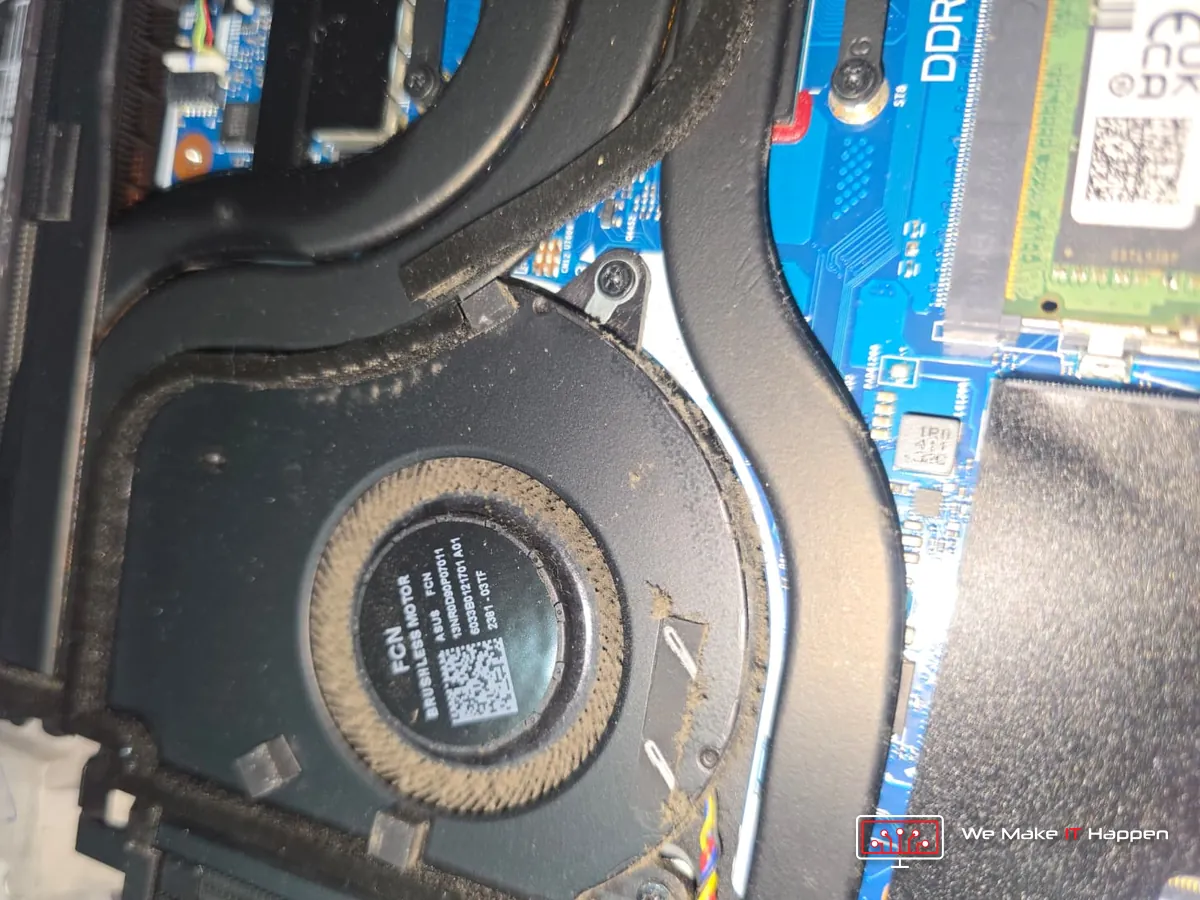
With the air intake matted, the fans could not get enough air even at full speed. With the liquid metal and the paste dried, the heat could not reach the cooler in the first place. Extra fans under the laptop cannot fix either of those.
Liquid metal in an ASUS ROG laptop: why it wears out
ASUS fits liquid metal on the processor of this laptop at the factory, because it moves heat far better than ordinary thermal paste. It is also much harder to live with. Liquid metal conducts electricity, so it has to be applied in exactly the right amount and held in by a seal around the chip.
After a few years of heating up and cooling down, it dries and creeps away from the chip, and the processor loses its cooling a little at a time. You do not notice it in everyday use. You notice it in the one game that asks for everything.
This is not a job for the kitchen table. One stray drop of liquid metal on the motherboard can short the laptop for good.
What we did
- Full strip-down and deep clean: the fans, the heatsink fins, the dust filters in the bottom cover and the inside of the case.
- Processor: the old liquid metal carefully removed from the chip and from the cooler, fresh liquid metal applied, and the protective seal around the chip checked.
- Graphics chip: the dried paste cleaned off and fresh thermal material applied.
- Thermal putty on the video memory and the power parts: checked and renewed where it had dried.
- The same tests again, with every sensor logged: 726 readings this time.
That is about three hours on the bench, then the tests. The laptop was dropped off on a Tuesday afternoon, and the owner had the finished report with the before and after numbers on Wednesday morning.
Before and after: the same test, number for number
Both tests loaded the processor and the graphics card fully and together, on the charger. That is the Forza situation.
| Full load, on the charger | Before | After |
|---|---|---|
| Graphics card power | 61 W | 75 W |
| Graphics hot spot, peak | 106 °C | 94 °C |
| Gap between hot spot and chip | 17 to 20 °C | 12 °C |
| Video memory, hottest | 82 °C | 68 °C |
| Processor power | 70 W | 99 W |
| Processor speed, all 14 cores | 3,230 MHz | 3,910 MHz |
| Hottest processor core | 90 °C at 70 W | 89 °C at 99 W |
| Processor on its own | 94 °C at 97 W after 5 seconds | about 110 W held for 9 minutes at about 90 °C |
| Hardware errors | 0 | 0 |
Look at the processor line and you might ask why it is only one degree cooler. The answer is the good news. In its Turbo mode the laptop gives the chips as much power as the cooler can carry away, up to about 90 °C. Before the service the cooler could carry 70 W. Now it carries 99 W at the same temperature. The gain shows up as power and speed, which in a game means the frame rate holds instead of falling away.
The graphics card tells the other half of the story: 24% more power, and the hot spot that used to trip the shutdown now peaks 12 °C lower. At rest, everything settles at about 40 °C.
One more find: a setting that was holding it back
A week before the visit, trying to stop the shutdowns, the owner had changed the temperature settings in Armoury Crate. We found them saved as a manual mode: the processor limited to 55 W and 65 W, and the graphics “Thermal Target” pulled down to 75 °C.
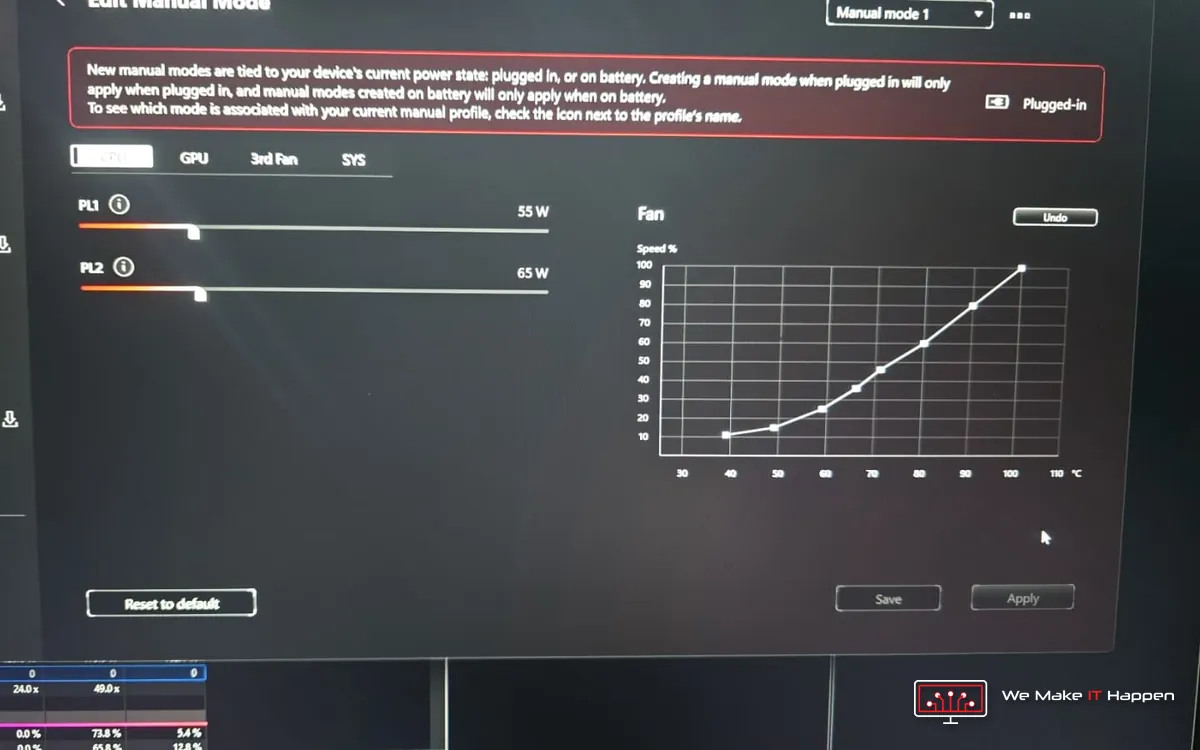
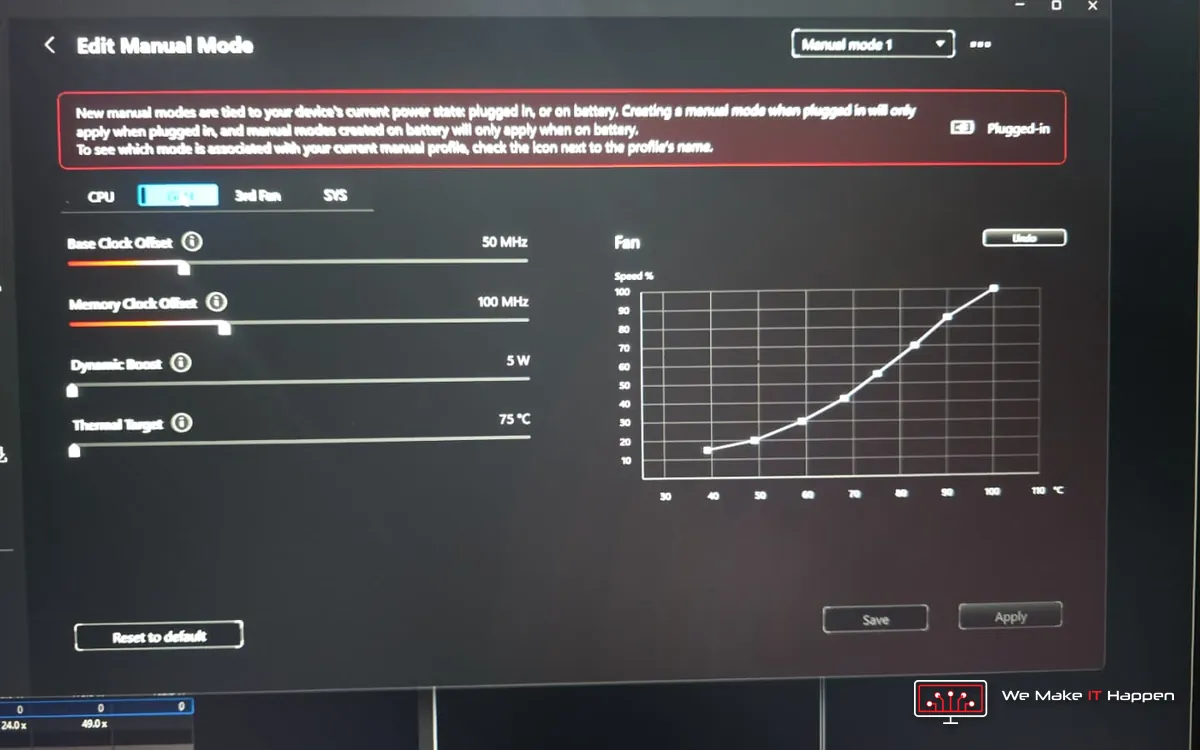
It is an understandable thing to try, and it does stop the shutdowns. It does it by making the laptop slow itself down long before it needs to, so games run much slower, and the dust and the dried liquid metal are still there. The setting hides the problem. With the cooling fixed, the advice is simple:
- Turbo: for heavy games, on the charger. Full power, and the fans are loud by design.
- Performance: for lighter games, browsing and work.
- Silent: on battery, for light use and films.
- The manual mode: leave it unselected, or press “Reset to default”.
Signs your gaming laptop needs the same service
- It switches off, or the power drops, in heavy games while lighter games run fine.
- The fans are flat out within a minute or two of starting a game.
- The frame rate falls away after 20 or 30 minutes of play.
- The graphics card reads over 90 °C in a monitoring app.
- It is more than a year and a half to two years old and has never been opened.
If yours is already switching off from heat, stop gaming on it until it has been serviced. A chip that has been cooked cannot be repaired. At that point the fix is a new motherboard, and on a gaming laptop that often means the end of the laptop.
Think of it like the oil in a car. A deep clean and fresh thermal material every year and a half to two years, sooner if you game every day, and the laptop keeps the power you paid for. We also checked the drive, the memory, the battery and the charger on this one, all healthy, and recommended a BIOS update as a separate job that is useful but not urgent.
Frequently asked questions
Why does my ASUS ROG Strix shut down while gaming?
Most often it is heat. When the graphics chip or the processor reaches its limit, the laptop cuts power and then switches off to protect itself. Dust in the filters and fans, and dried liquid metal or paste on the chips, are the usual causes on a laptop that has never been opened.
Does the liquid metal in an ASUS ROG laptop need replacing?
In time, yes. Liquid metal cools better than paste, but after a few years of heat it can dry and creep away from the chip. On this ROG Strix G16 it had spread past the processor and dried at the edges. A before and after test shows whether yours is due.
Can I replace the liquid metal myself?
We advise against it. Liquid metal conducts electricity, so one stray drop on the motherboard can short the laptop for good. It also has to be applied in exactly the right amount, inside a seal around the chip.
How often should a gaming laptop be deep cleaned and re-pasted?
Every year and a half to two years at most, like an oil change for a car. Sooner if you game every day, or if the fans have become loud and the frame rate drops during long sessions.
Gaming laptop running hot or switching off? Dagenham and Cambridge, by appointment
See our deep cleaning and thermal paste replacement page, book an appointment, or message us on WhatsApp 0749 792 5760. A thermal service from us comes with a test before, the same test after, photos of the inside of your laptop and a written report, so you can see what changed.
More from the same bench: what we found inside an overheating Acer Predator Helios 300, and why a gaming PC fault is almost never what it looks like.