
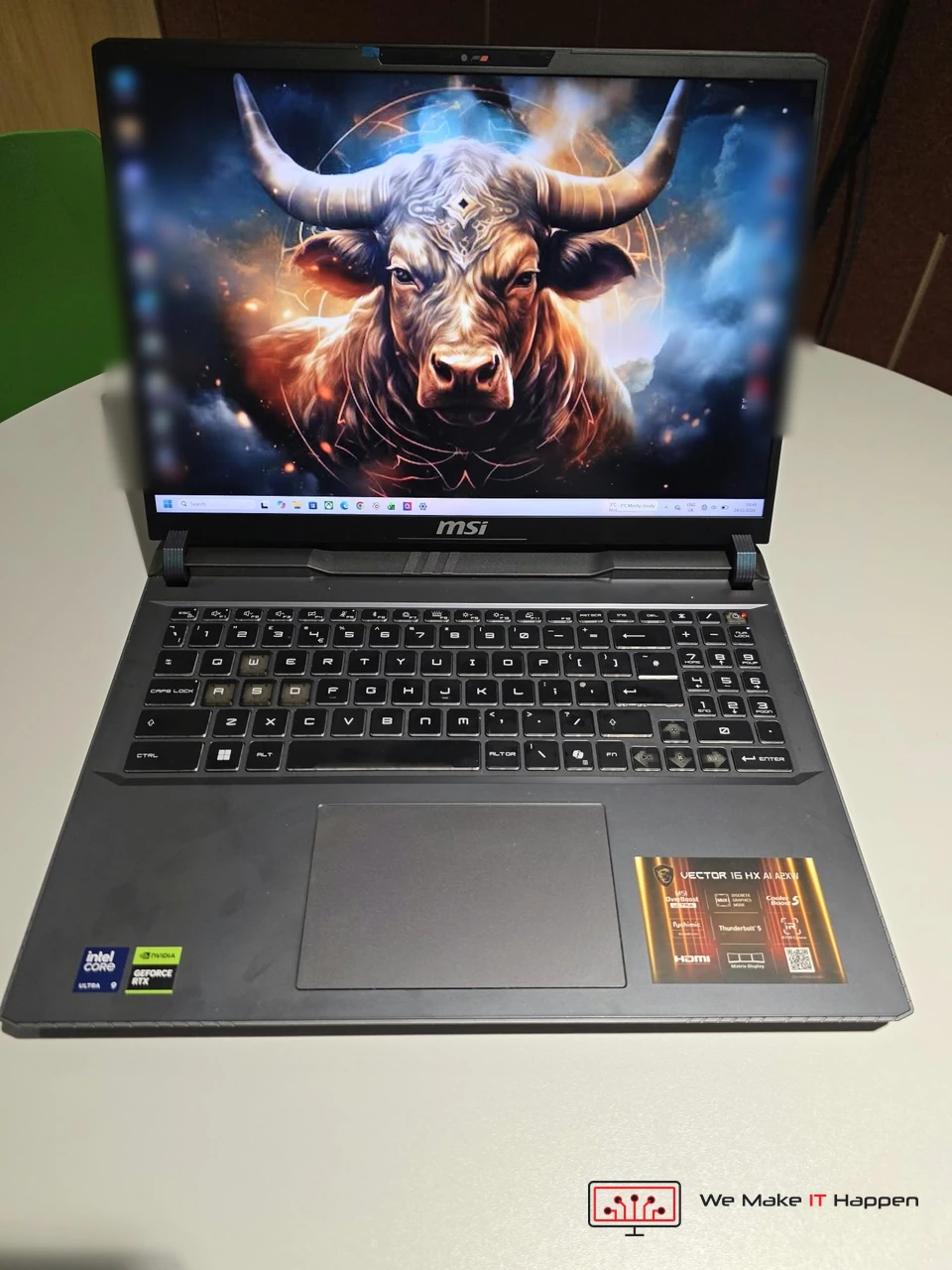
An MSI gaming laptop that hit 99 °C. On 23 November 2026 an MSI Vector 16 HX AI came to our workshop in Cambridge. Its owner had seen the processor reach 99 °C. If your MSI laptop is overheating, this job shows what can be behind it and what a proper clean and new thermal paste can do: in the same stress test the processor’s peak dropped from 99 °C to 86 °C.
Usually, yes. A clean and new thermal paste normally brings a laptop down by about 3 to 5 °C. When the old paste has dried out completely, the gain is much bigger: on this MSI Vector 16 the processor’s peak came down by 13 °C, and the graphics card ran faster as well.
MSI laptop overheating in Cambridge: the test before the job
The laptop is an MSI Vector 16 HX AI with an Intel Core Ultra 9 275HX processor and an NVIDIA GeForce RTX 5070 Ti graphics card. Before we opened it, we ran a stress test: the processor and the graphics card at full load at the same time, with every sensor logged. That means the temperatures, the power, the speeds and both fans.
The log showed exactly what the owner had seen. The processor reached 99 °C, and its hottest internal sensor reached 100 °C. That is the limit where a processor must slow itself down to stay safe, and in this test it did so six times.
What we found inside
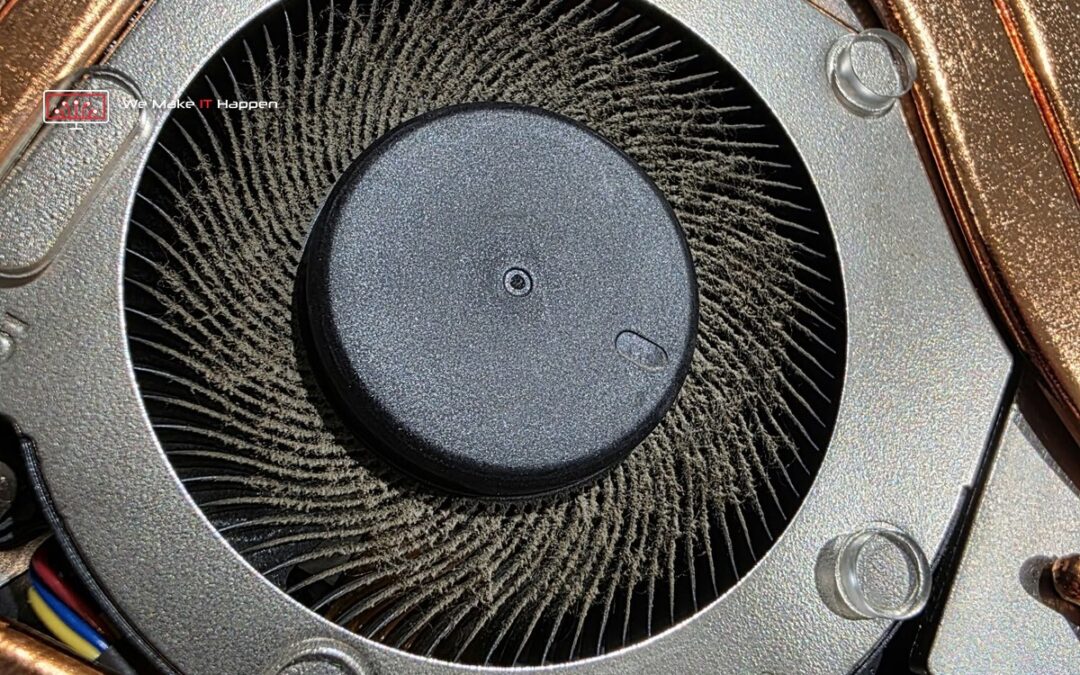
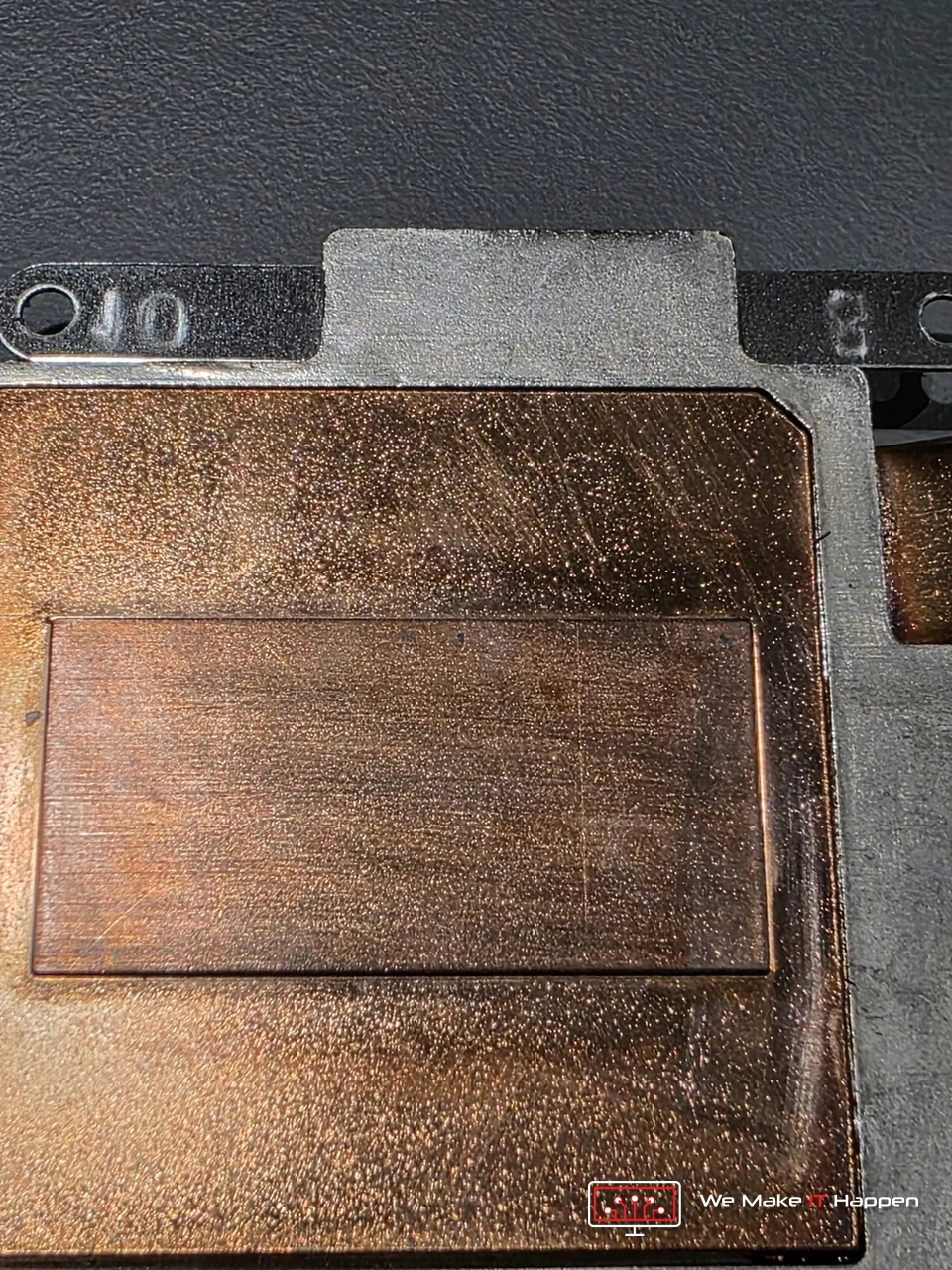
With the laptop open, the reasons were easy to see. Both fans were packed with dust, on the blades and in the air path, so they had to spin faster to move less air. And the factory thermal paste had dried out on the processor and on the graphics chip. It had gone hard and patchy, and it came off in flakes.
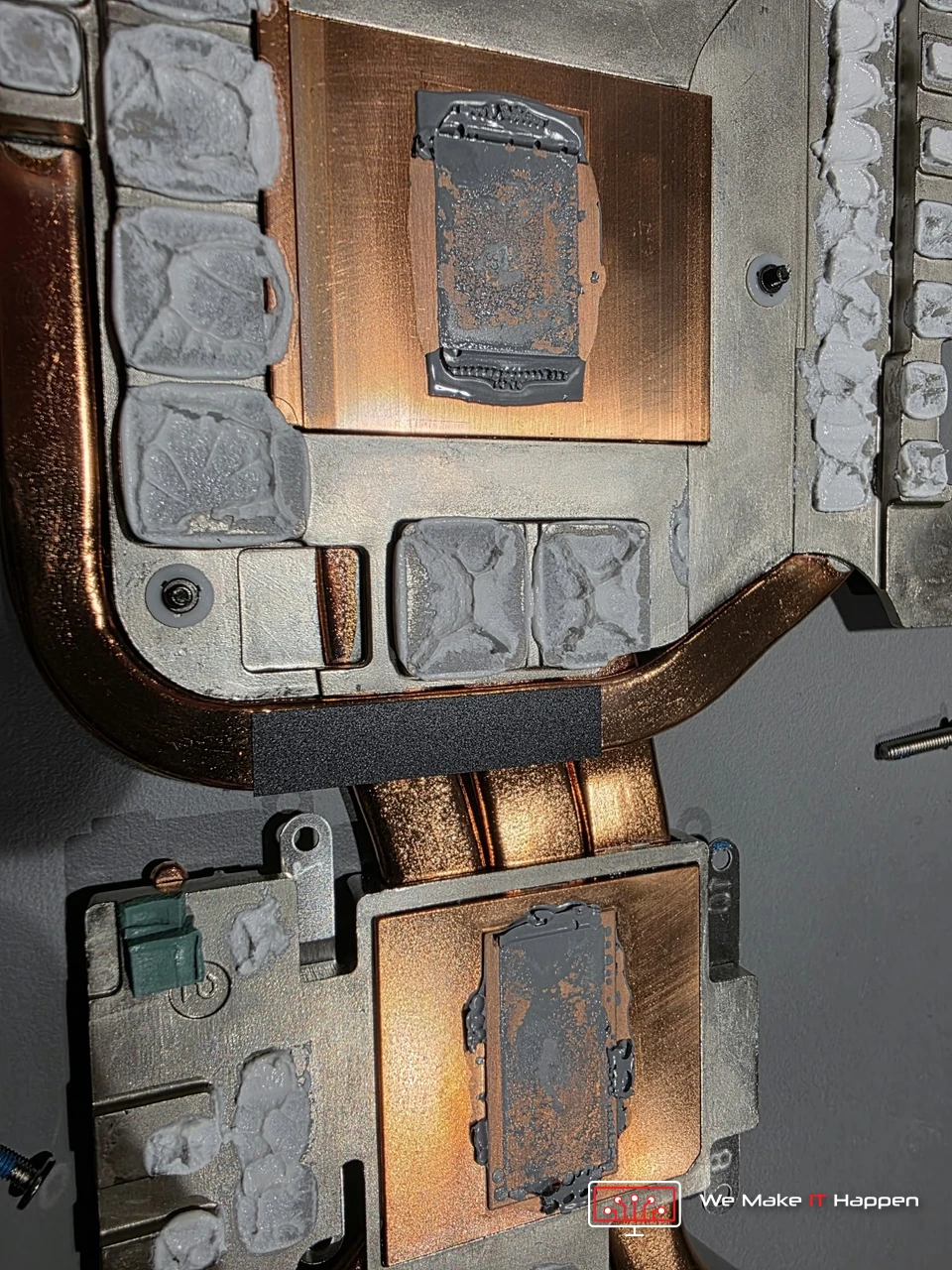
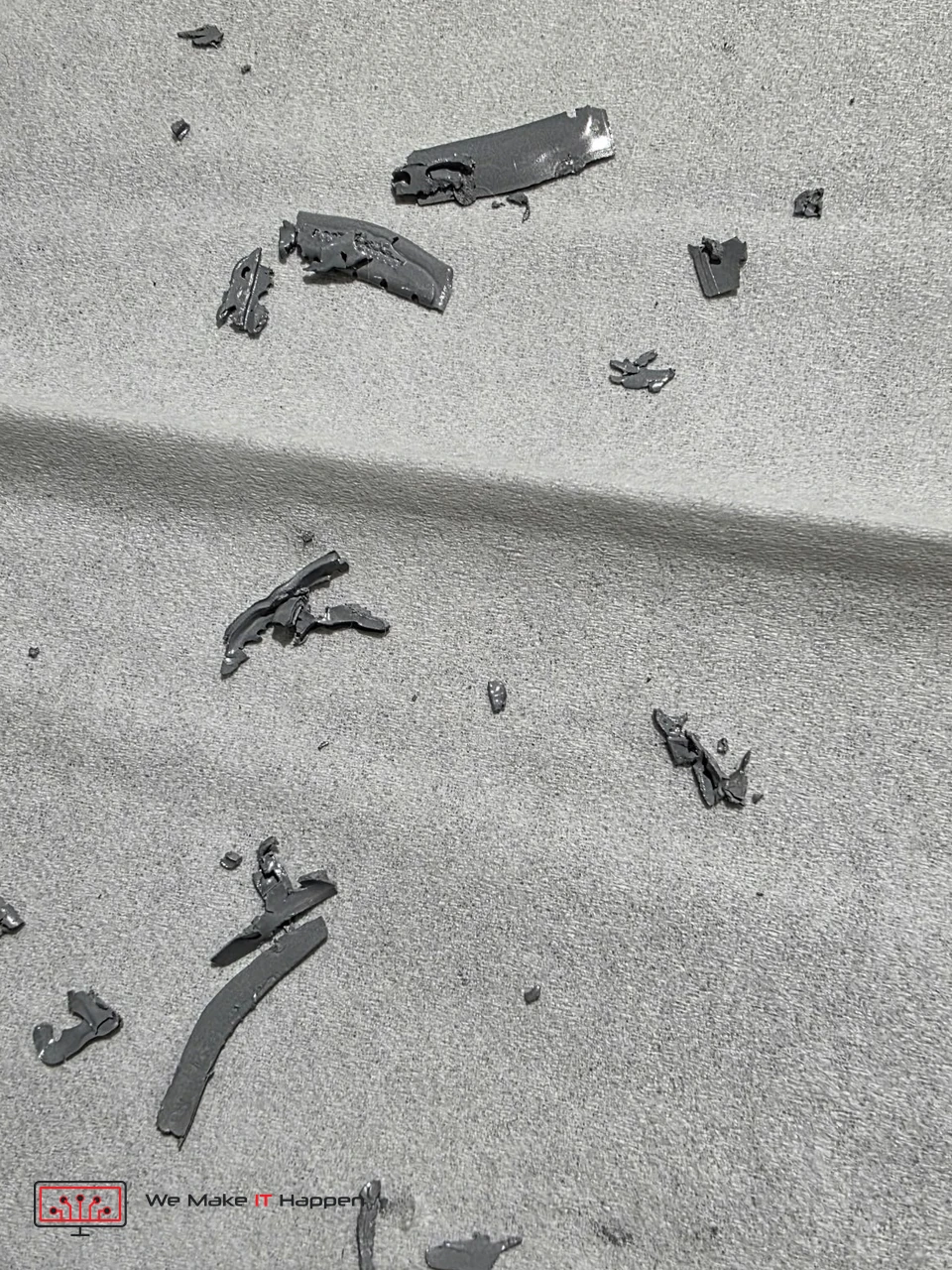
Thermal paste fills the tiny gaps between the chip and the copper of the cooler. When it dries out it shrinks and cracks, air gets into the gaps, and air does not carry heat. The chip then heats up much faster than the cooler can take the heat away. It shows most in short bursts, when you open a program or a game loads: the temperature jumps straight to the limit.
What we did
- BitLocker decrypted first. The drive encryption was switched off before the battery was disconnected, so the laptop could not lock itself and the owner’s files stayed safe. More about BitLocker and why it matters.
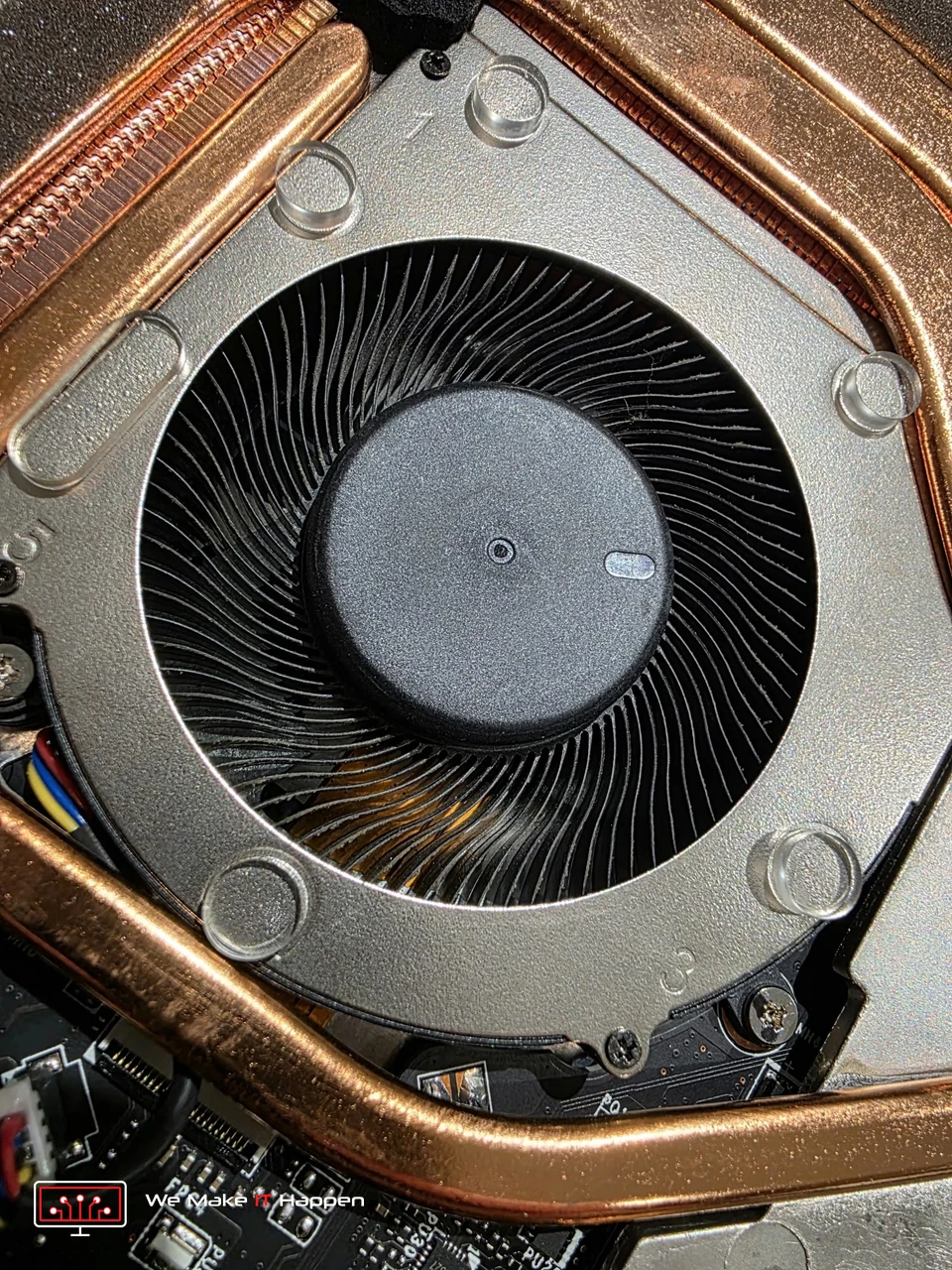
- A full clean. Both fans, the heatsink fins and the air paths were cleaned of dust.
- Old paste removed. We took it off the processor, the graphics chip and the copper of the cooler, and cleaned every surface back to bare metal.
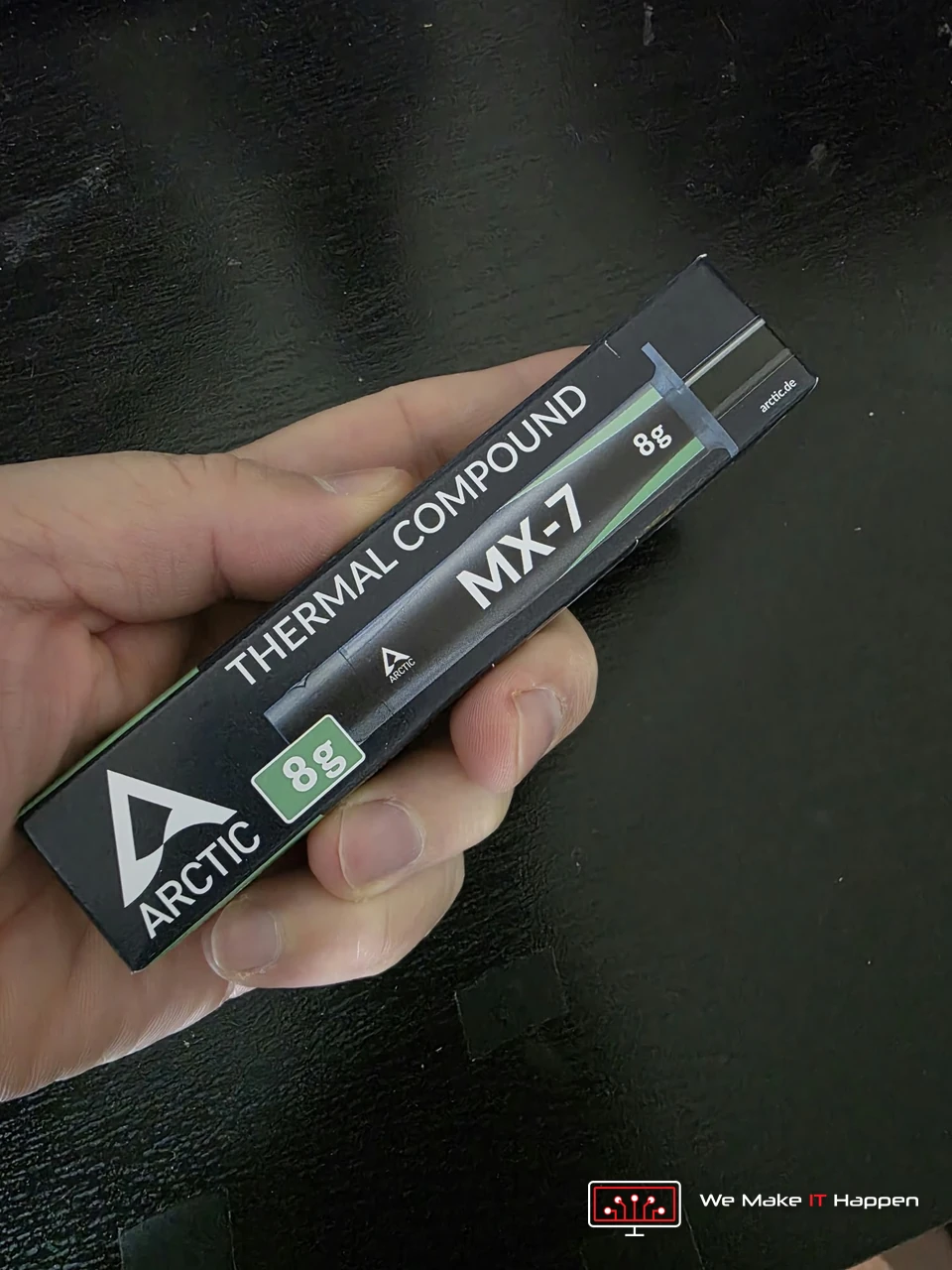
- New Arctic MX-7 thermal paste on the processor and the graphics chip, and the cooler fitted back with even pressure.
- The same stress test again, with every sensor logged, and run for longer than the first one.
The result: 99 °C before, 86 °C after
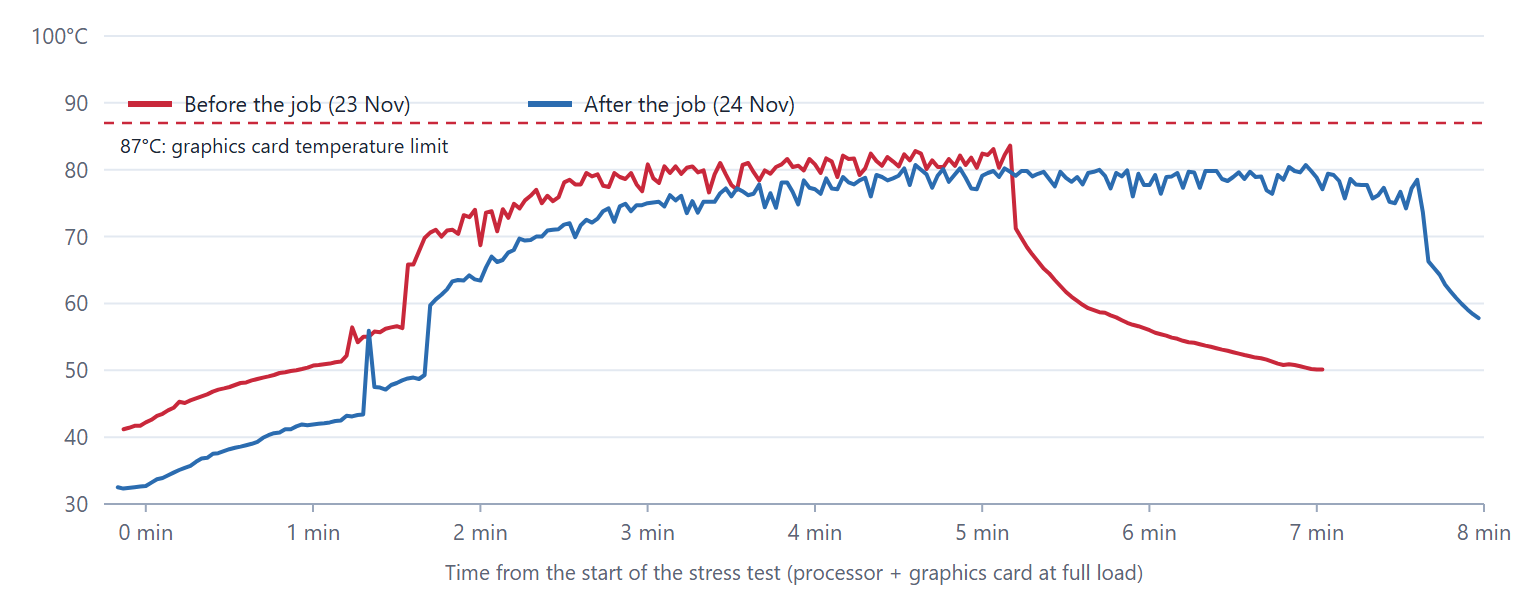
The red line is the test before the job and the blue line is the same test after it. The blue line stays below the red one the whole way. The peak comes at the end of each test: the load stops, and the processor speeds one or two cores up for a moment, as it does every time you open something. Before the job that burst sent it to 99 °C. After the job the same burst peaks at 86 °C.
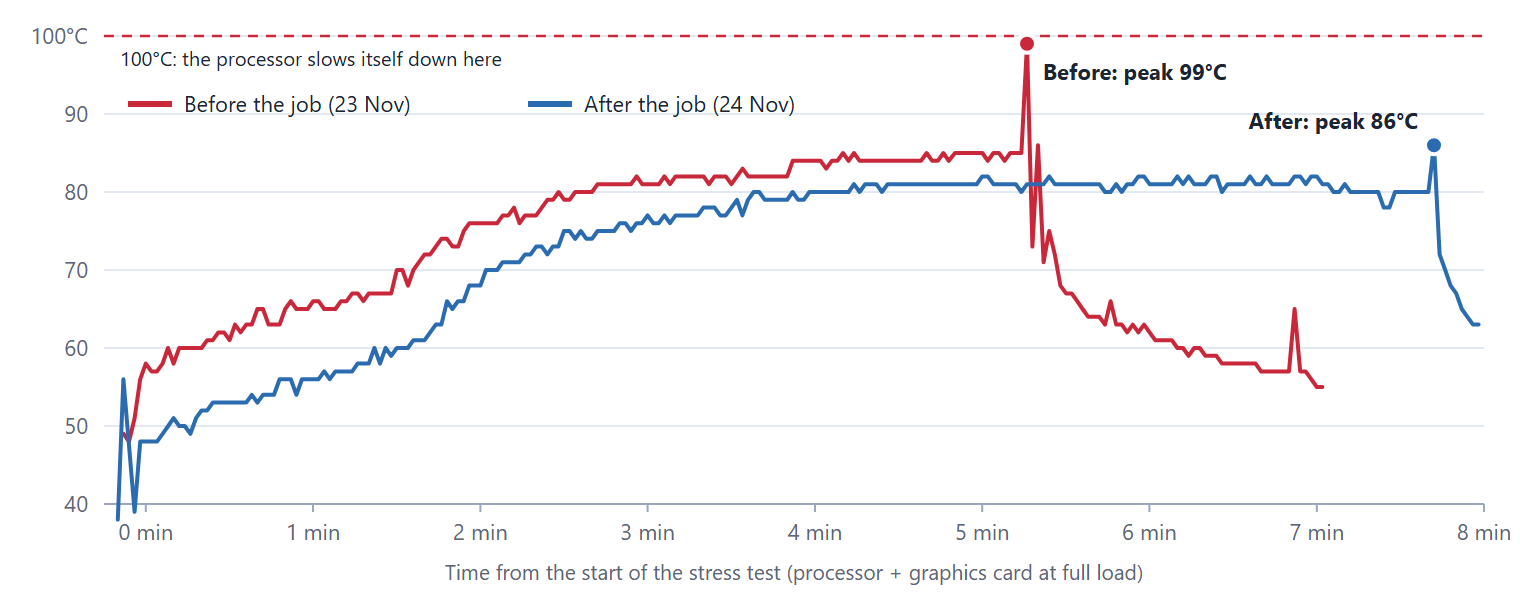
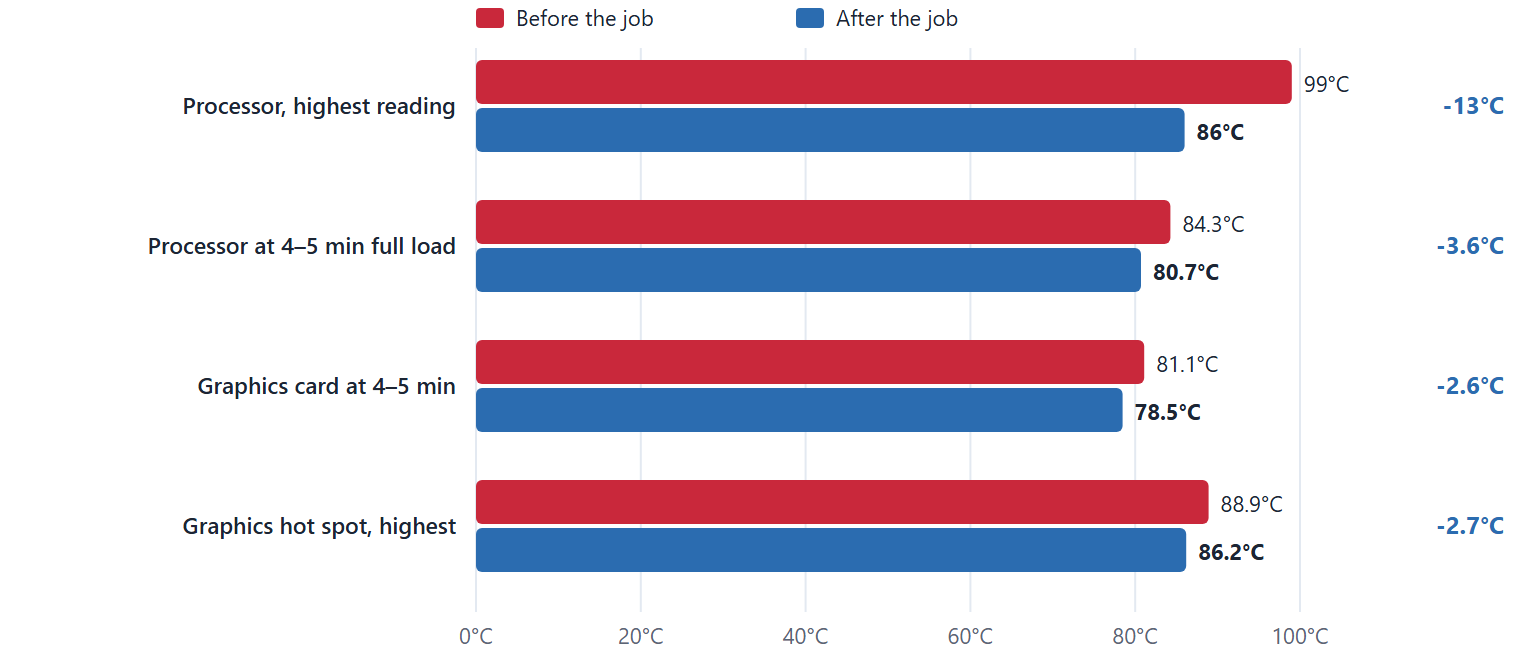
That is a huge drop. A clean and new thermal paste usually brings a laptop down by only about 3 to 5 °C. Here the peak came down by 13 °C, about three times the usual result, because the old paste had dried out completely. After four to five minutes of full load the processor was also cooler, 80.7 °C instead of 84.3 °C, and its fan was turning more slowly: 4,406 rpm instead of 5,278. So it is quieter too.
The graphics card: cooler and faster
The graphics card gained as well. After four to five minutes it was at 78.5 °C instead of 81.1 °C, while it was doing more work: it drew 117 W instead of 112 W and ran at 2,442 MHz instead of 2,333 MHz, about 5% faster. Its highest reading dropped from 83.6 °C to 80.7 °C, further away from its 87 °C limit.
Every number, before and after
| What we measured | Before | After |
|---|---|---|
| Processor, highest reading | 99 °C | 86 °C |
| Processor, hottest internal sensor | 100 °C | 87 °C |
| Processor after 4 to 5 minutes of full load | 84.3 °C | 80.7 °C |
| Processor fan after 4 to 5 minutes | 5,278 rpm | 4,406 rpm |
| Times the processor slowed itself down because of heat | 6 | 2 |
| Graphics card after 4 to 5 minutes | 81.1 °C | 78.5 °C |
| Graphics card hot spot, highest | 88.9 °C | 86.2 °C |
| Graphics card speed after 4 to 5 minutes | 2,333 MHz | 2,442 MHz |
| Processor power during the test | 55 W | 55 W |
The processor power was the same in both tests, about 55 W, so the comparison is fair. The test after the job also ran longer: 7.7 minutes at full load instead of 5.2. The health checks were clean as well: no hardware errors in either test, and the drive stayed cool at 44 °C at most.
- Use it on a hard, flat surface. A bed, a sofa or your lap blocks the air vents underneath.
- Keep the vents clear at the back and the sides.
- Keep it plugged in for gaming. It runs at full power on the charger.
- Have it cleaned and re-pasted every 1 to 2 years. Dust and dried paste build up slowly, so you do not notice until it gets hot.
MSI laptop overheating: your questions
Why is my MSI laptop overheating?
On this MSI Vector 16 there were two reasons: both fans were packed with dust, and the factory thermal paste on the processor and the graphics chip had dried out. Both build up slowly, so you do not notice until the laptop gets hot.
How much cooler will a clean and new thermal paste make my laptop?
Usually about 3 to 5 °C. When the old paste has dried out completely it can be much more: on this laptop the processor’s peak dropped by 13 °C, from 99 °C to 86 °C, in the same stress test.
Is 99 °C dangerous for a gaming laptop?
The processor protects itself: at about 100 °C it slows itself down to stay safe. So the laptop gets slower just when it is working hardest. It is a clear sign that the cooling needs attention.
Will I lose my files when the laptop is opened?
No. Before we disconnect the battery we check whether BitLocker, the drive encryption, is switched on. If it is and you need your files, we decrypt the drive first, so the laptop cannot lock itself. On this job the files, apps and settings were not touched.
Is your MSI laptop, or another gaming laptop, overheating? See our cleaning and thermal paste replacement service and our laptop repairs page, read how we fixed an overheating Lenovo Legion Pro 5, book online or call us on 07497 925760. Every job is tested before collection and comes with our workshop warranty. We work by appointment in Cambridge and Dagenham.