
This Xbox Series S starts every game and then, a few seconds later, drops back to the Home screen. Not one game: all of them. The owner had already done the sensible things at home, a system update and a full “Reset and remove everything”, and nothing changed. It came to our Cambridge workshop on a Thursday evening, and it is a good example of why an Xbox that kicks you out of games needs advanced diagnostics, not a guess.
Here is what we did, what we found, why the deep clean and fresh thermal paste were the right first step but not the cure, and the exact order we test a fault like this in. The console is still on the bench as we write this, and we will add the result when we have it.
Step one: the deep clean and fresh thermal paste
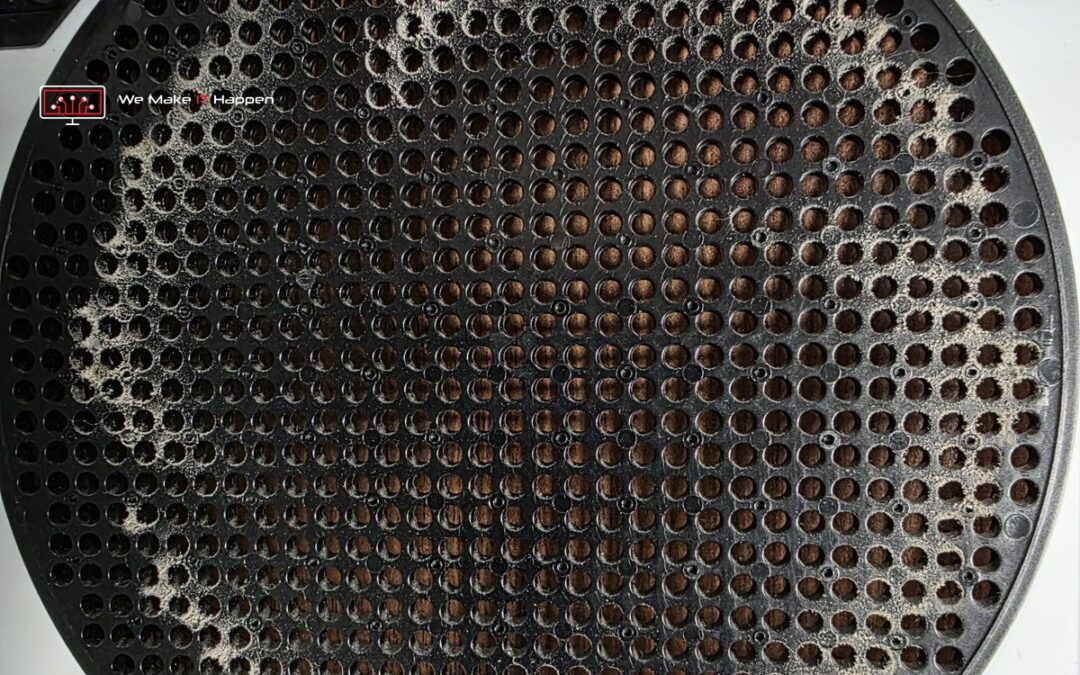
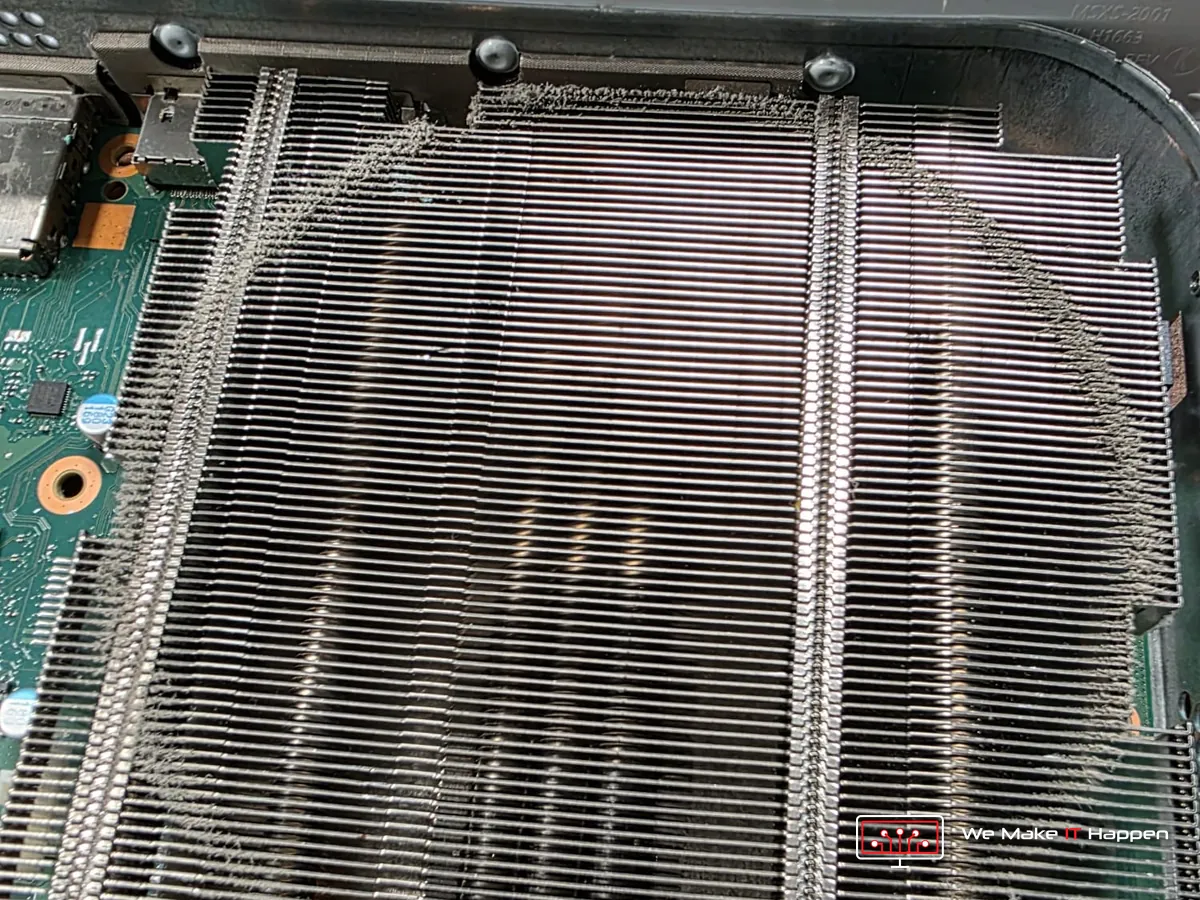
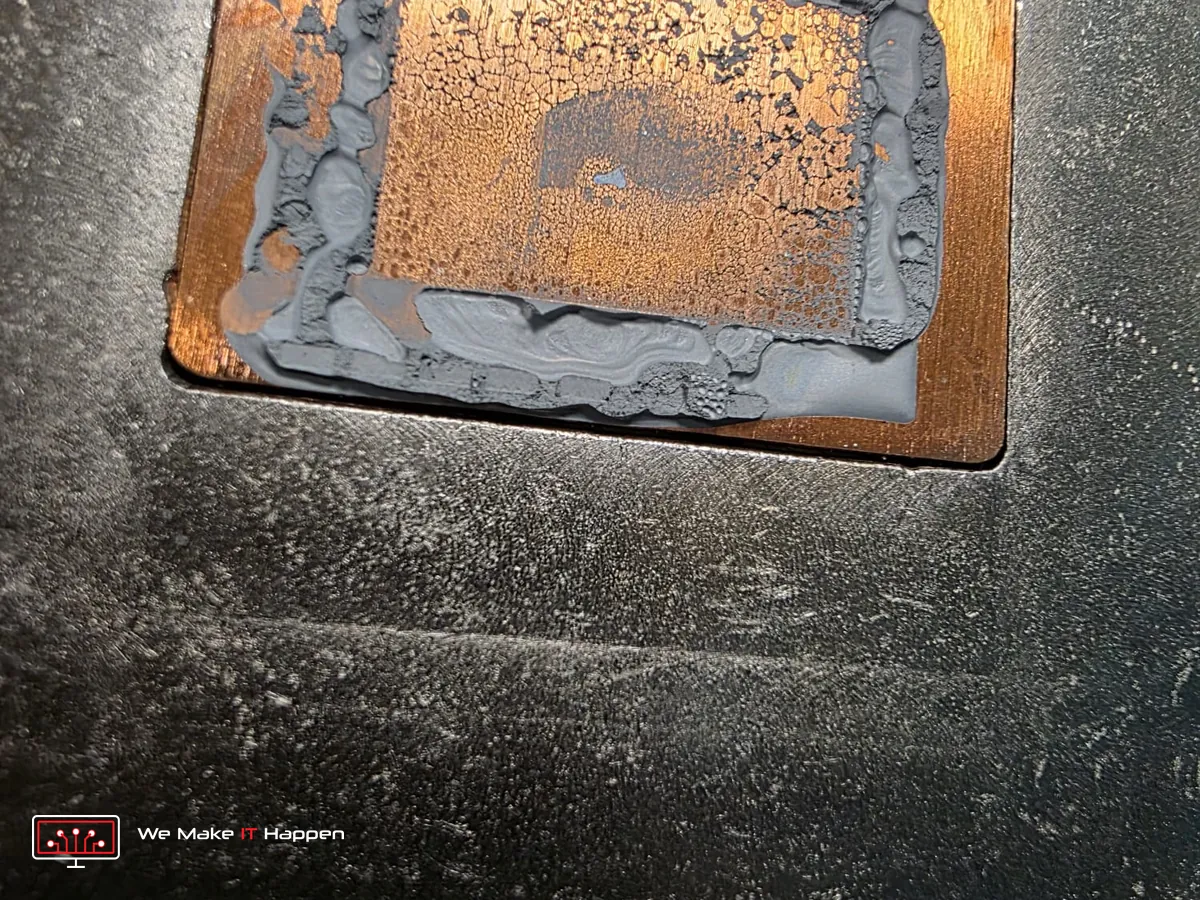
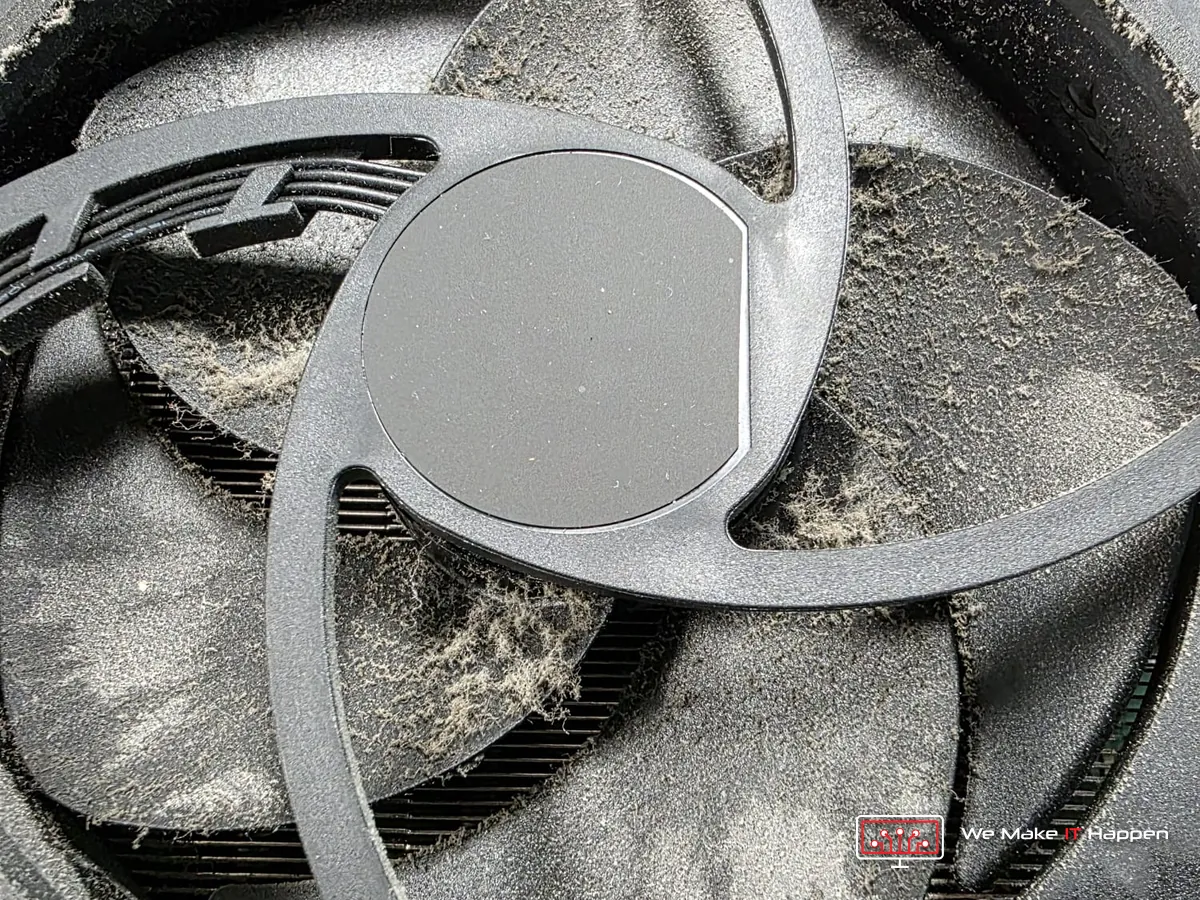
Every console that comes to us gets opened first, because nothing can be diagnosed through a closed case. This one looked like most consoles a few years old: dust packed into the holes of the vent grille, a grey felt on the heatsink fins, dust on the fan blades and thermal paste on the processor that had dried to a crust. That is the standard deep clean and new thermal paste job, it was overdue, and it was done.
It also tells us something useful. A console that runs hot behaves in a known way: the fan roars, the picture stutters, and in the end the whole console switches itself off. It does not close a game three seconds after it opens and leave you sitting on the Home screen. So when the clean and the fresh paste made no difference to the crashes, heat was crossed off the list. One cause down, three to go.
Why an Xbox that kicks you out of games needs advanced diagnostics
A game that opens and then closes itself, on every title, has four possible causes, and they live in very different places: the system software or a corrupt install, the account and profile, the internal SSD that the games are read from, and the board itself, mainly the memory and the power delivery. A quick look cannot tell them apart, because the symptom is the same. What tells them apart is testing them one at a time, cheapest and least invasive first, and only moving to the next when the previous one is cleared.
That is what advanced diagnostics means on a console: not a magic tool, but a strict order of tests with photos and a plain answer at the end. On this Series S the owner had already done a full reset at home, which makes software unlikely, so the pattern points at the storage or the board. We still run the software steps first, because “unlikely” is not “ruled out”, and because every later step depends on a clean system.
Our checklist for a console that crashes to Home
- Watch one crash before touching anything. How many seconds after the game starts, does the Xbox button flash, is there an error code, does it drop during loading or when gameplay begins. Those details point at storage or memory before a single screw comes out.
- A fresh system, from the console only. An Offline System Update from a USB stick (the current system software from Xbox support), then “Reset this Xbox, remove everything”, and a set-up with a workshop account, not the owner’s. This is the firmware step this console is on now. The internal SSD is never formatted or cloned on a PC: it is paired to that console, and people who try end up with a console stuck on an error code.
- A clean test. Two free games installed on the internal drive, one older Xbox One title and one made for Series X|S, launched several times and played for half an hour each. If both are fine, it was software or the account, and we stop there. If anything crashes on a fresh system with a clean account, it is hardware.
- The storage test. An external USB 3 drive formatted on the console, the Xbox One game moved onto it and played from there. Crashes on the internal drive but runs from USB: the internal SSD. Crashes on both: the board. Only the demanding Series game crashes: load-related, so board or power.
- The board. The back of the board under the microscope, around the processor and the memory chips, for cracked or missing small components, corrosion or liquid marks. Then an oscilloscope on the processor, memory and 12 V supply rails while a game launches, watching for a drop at the moment it crashes.
- Before it goes home. Fan connected, every thermal pad back in place, heatsink screws evenly tightened, our account signed out, and a written summary of what was found.
Where this console is now
Deep clean and fresh paste done and tested: the crashes stayed. Heat is cleared. The owner gave us the go-ahead to wipe the console, so the fresh-system step is under way, with the storage test next. The pattern so far points most likely at the internal SSD, but we test before we say, and the owner gets photos and a plain explanation at every step, never a surprise.
One thing we agreed before the console came in, because it matters for a fault like this: the deep clean and paste is a fixed-price job. If it does not cure the fault, the advanced diagnostics follow, and the owner only pays for diagnostics if nothing can be fixed or they decide not to go ahead. You know the rules before we open it.
What you can safely try at home first
- Power cycle properly: hold the Xbox button for 10 seconds until it switches off, unplug for 30 seconds, plug back in.
- Update: Settings, System, Updates. Then try one game again.
- Try a different kind of game: an older Xbox One title and a Series X|S title. If only one kind crashes, say so when you bring it in, it shortens the diagnosis.
- Uninstall and reinstall one game, and check there is free space on the drive.
- A full reset is the last resort, and only if you have your account sign-in details. If it still kicks you out after a full reset, it is hardware, and no amount of settings will change that. Bring it in.
- Do not open it, and never take the internal SSD out to test it in a PC. It is tied to the console.
Frequently asked questions
My Xbox kicks me out of games back to the Home screen. Is it overheating?
Usually not. Heat makes the fan loud, the game stutter and the whole console switch off. A game that closes seconds after it opens, on every title, points at the system software, the internal SSD or the board, and that needs the tests in order.
Will a deep clean fix an Xbox that crashes to Home?
If the console is also hot and loud, the clean and fresh thermal paste can fix stutter and shutdowns, and every console a few years old needs it. For a game that closes itself on a cool console, the clean is step one of the diagnosis, not the cure.
Can the internal SSD of an Xbox Series S be replaced?
It depends on what the tests show, and it is specialist work: the drive is paired to the console and has to be dealt with from the console, never cloned on a PC. We only quote for it after the storage test proves the drive is the cause.
How long does advanced diagnostics take on a console?
The clean and paste takes three to four hours. The elimination steps that follow take hours more and often run overnight, because each test needs a fresh system and real play time. We tell you what we found after each step.
Xbox repairs in Cambridge and Dagenham, by appointment
Crashing to Home, loud fan, no picture or a damaged HDMI port: see our Xbox cleaning and HDMI port repair page, book an appointment, or message us on WhatsApp 0749 792 5760. Every console repair comes with photos of the inside, a full test and a 12-month warranty.
Related: an Xbox Series X HDMI port repaired after a failed repair elsewhere, and why a loose PS5 HDMI port should never be wiggled.